Microsoft Remote Display Adapter убрать из системы (черный экран)
В моем случае это именно лишнее устройство, которое мне мешало, не буду вдаваться в подробности по каким причинам.
Имеем Windows 10 Pro 2204 (справедливо и для 1909)
Если просто отключить устройство, то подключение будет с черным экраном и как итог ошибкой.
Как отключить?
1. Изменение групповой политики
2. Конфигурация компьютера
3. Административные шаблоны
4. Компоненты Windows
5. Службы удаленных рабочих столов
6. Узел сеансов удаленных рабочих столов
7. Среда удаленных сеансов
8. Использовать графический драйвер WDDM — Отключить
Из справки Windows:
Если этот параметр политики отключен, при подключениях к удаленным рабочим столам НЕ используется графический драйвер WDDM . В этом случае при подключениях к удаленным рабочим столам используется графический драйвер XDDM .
Microsoft remote display adapter что это
Сообщения: 122
Благодарности: 11
| Конфигурация компьютера | |
| Процессор: AMD Ryzen R7 5800X @ 5.0 GHz OC | |
| Материнская плата: ASUS ROG X570-E | |
| Память: DDR4 G.Skill 3600MHz 32GB x2 (64GB) | |
| HDD: 1TB M.2 PCI-E 4, 0.5TB M.2 PCI-E 3, 2TB x2 SSD, 0.5TB x2 SSD | |
| Видеокарта: AMD RX 6900XT 16GB (Water, Sapphire Toxic) | |
| Звук: Asus Xonar U7 | |
| Блок питания: Corsair Gold, 1200W | |
| Монитор: ViewSonic 32" 4K; Samsung 28" 4K; Samsung 19" 1600×1280, | |
| Ноутбук/нетбук: HP R5 (Ryzen 5500U, 24GB DDR4) | |
| ОС: Windows 10 x64 | |
| Прочее: Logitech: G815, G935, G502, F350, G923, Attack 3 |
Здравствуйте! У меня очень экзотическая проблема: в списке видеокарт появилось около 700 видеокарт с названием "Microsoft Remote Display Adapter" (RdpIdd_IndirectDisplay, rdpidd.inf) из-за этого пара игр мгновенно падает при заходе в настройки выбора разрешения экрана. Не знаю когда это появилось, я долго искал причину падения игры, пошёл удалять драйвера через Display Driver Uninstaller, и обнаружил в интефрейсе DDU наличие 688 "видеокарт". Причём моя реальная (RTX 2080) первая в списке.
GPU #0000 : NVIDIA GeForce RTX 2080
GPU DeviceID : pci\ven_10de&dev_1e87
Vbios : Version90 04.0b.40.bf
Detected Driver(s) Version(s) : 27.21.14.6109
INF section : Section001
GPU #0001 : Microsoft Remote Display Adapter
GPU DeviceID : RdpIdd_IndirectDisplay
Detected Driver(s) Version(s) : 10.0.19041.662
INF name : rdpidd.inf
INF section : RdpIdd_Install.NT
дальше куча повторений, и конец:
Я знаю что это драйвер для RDP, которым часто пользуюсь. Посмотрел на других двух своих машинах — на одном компьютере 137 таких видеокарт (GTX 1060, проблем с играми кстати нет), на другом ноль (GT 525M).
Что происходит? На всех машинах Window 20H2. Программой DDU пользуюсь уже около 5ти лет, и такое впервые.
Если это нормально — чтож, готов в это поверить. Но гугл ничего мне не сказал, поиск по форуму тоже.
Fixed: Error Code 0x3 Remote Desktop [3 Effective Solutions]
Encountering the annoying error code 0x3 on Remote Desktop? Don’t worry. This post presents three effective solutions to help you fix this issue, empowering you to resume seamless remote connectivity.
By Ellie  / Last Updated August 11, 2023
Windows Server 2022 RDP connection fails with error 0x3
I recently set up Windows Server 22 Desktop Edition and attempted to establish a connection. Despite entering the IP and logging in with my credentials, a message box pops up, indicating the termination of my Remote Desktop Services session. This issue persists across various client computers. How can I effectively address this problem?”
— Question from Microsoft Community
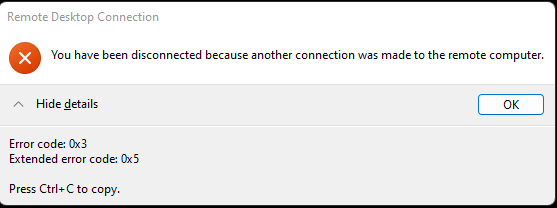
How to fix error code 0x3 on Remote Desktop [3 solutions]
Here are three effective ways that may help you fix error code 0x3 on Remote Desktop.
Solution 1. Uninstall the display adapter
The occurrence of Remote Desktop Connection error code 0x3 might be closely linked to the display adapter on the remote side. You can attempt to resolve this matter by uninstalling the display adapter. This process assumes you have physical access to the remote PC or are utilizing a service like Chrome Remote Desktop.
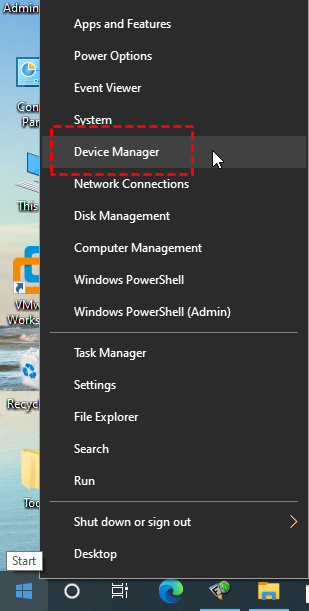
Step 1. Launching the Device Manager.
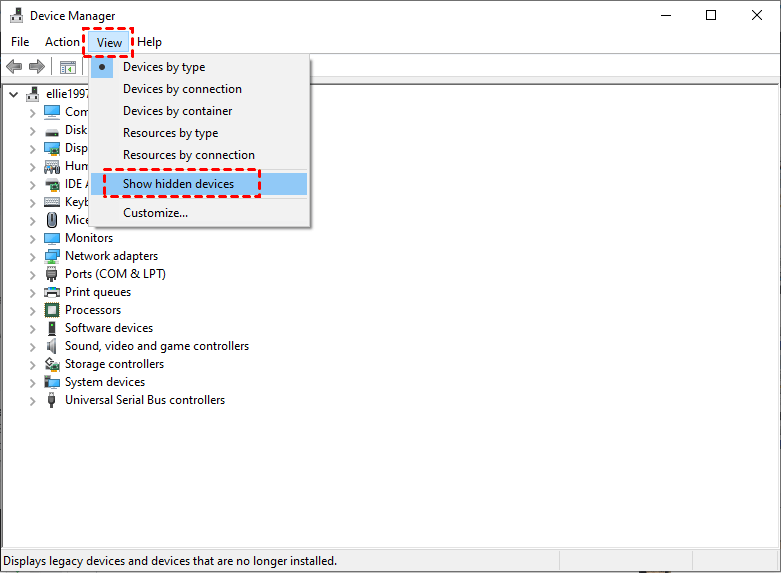
Step 2. Opt for View > Show hidden devices.
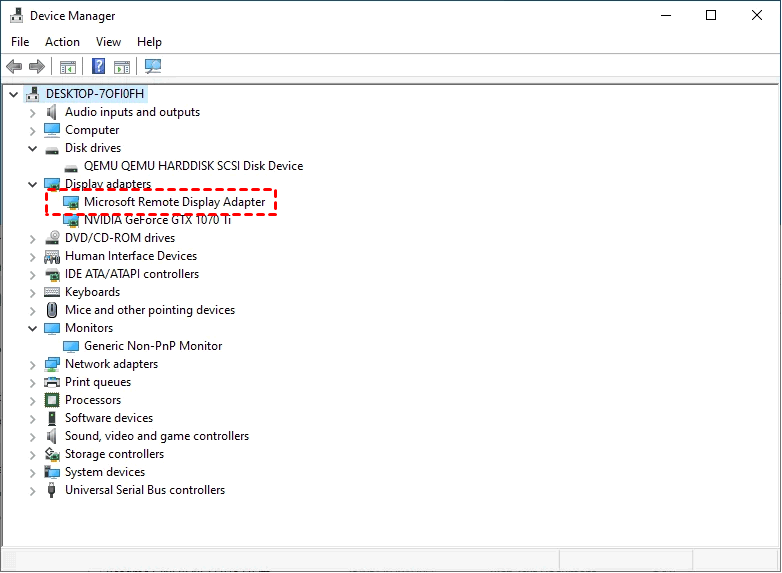
Step 2. Access the Display adapters category. Right-click on Microsoft Remote Display Adapter, then choose Uninstall.
Solution 2. Check Group Policy setting
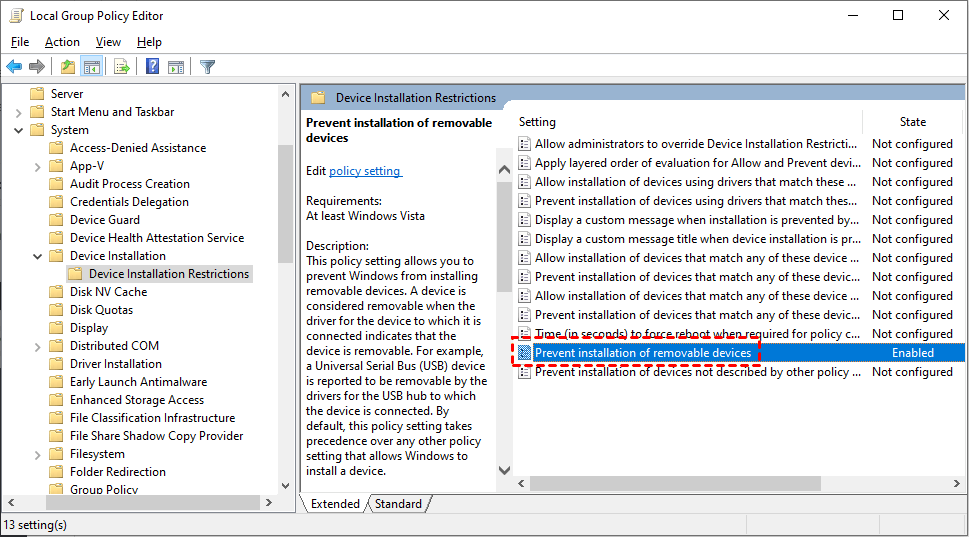
In cases where the Group Policy setting «Prevent installation of removable devices» is enabled, it could lead to the emergence of Remote Desktop error code 0x3. Follow these steps to adjust it to Not Configured.
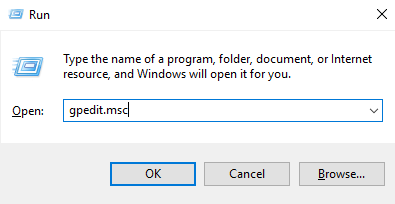
Step 1. Initiate the Group Policy utility by pressing Win + R and entering «gpedit.msc«.
Step 2. Navigate through Computer Configuration > Administrative Templates > System > Device Installation > Device Installation Restrictions > Prevent installation of removable devices. Double-click on the setting.
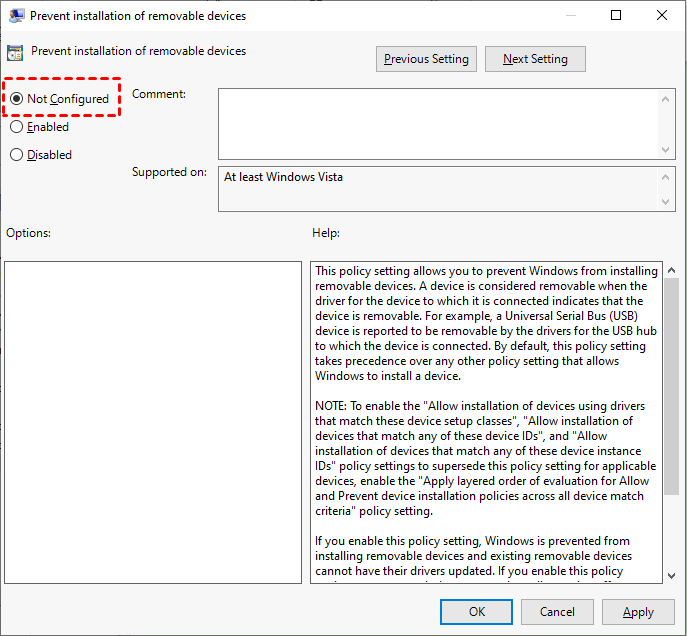
Step 3. Modify the setting to «Not Configured«.
Solution 3. Try a Remote Desktop alternative
A simpler resolution could involve adopting a Remote Desktop alternative tailored for Windows Server 2022. Opt for AnyViewer, a versatile and free remote desktop software compatible with both Windows OS and Windows Server OS. Its impressive performance ensures rapid, stable, and error-free remote connections.
Moreover, AnyViewer boasts several advantages over the standard Remote Desktop:
- AnyViewer permits internet-based remote connections without necessitating port forwarding or VPN.
- Compatibility extends to Windows Home and Windows Standard editions.
- AnyViewer facilitates multiple sessions on Windows and Windows Server, without any additional expenses.
Step 1. Start by installing AnyViewer on all targeted computers requiring linkage.
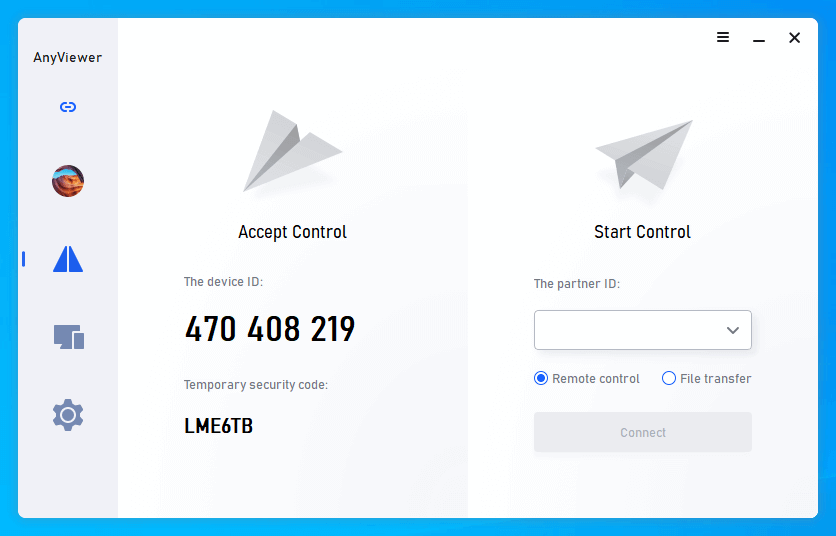
Step 2. Create an AnyViewer account through registration or login, if applicable.
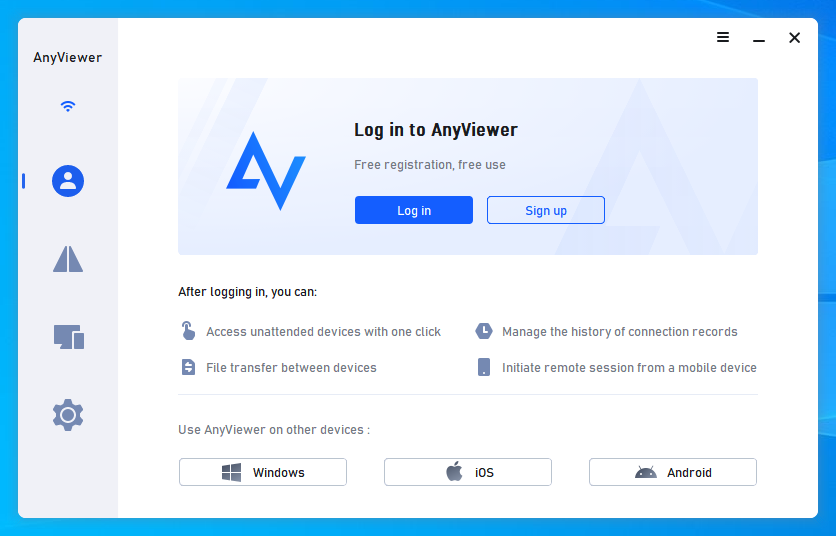
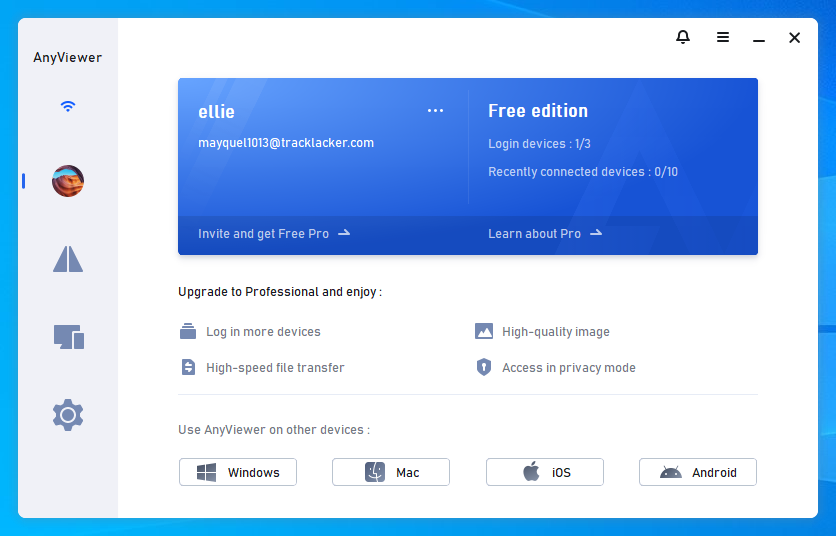
Step 3. Confirm successful account login to solidify device associations.
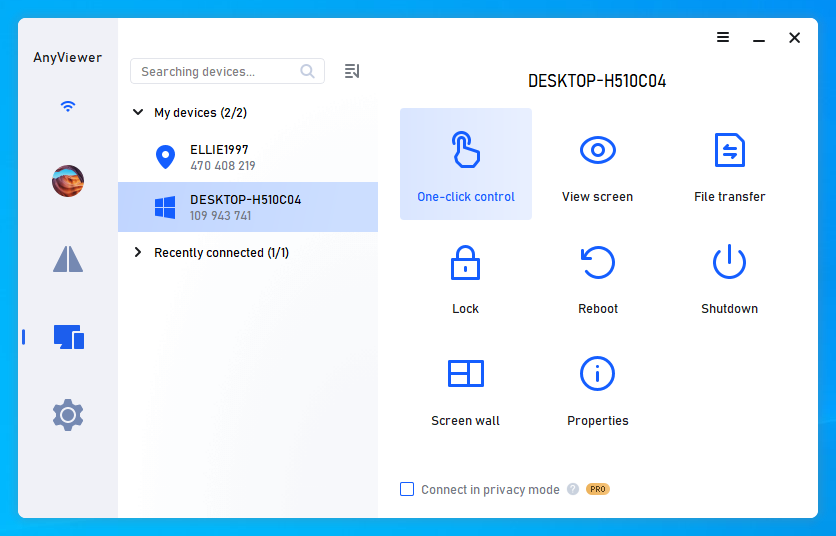
Step 4. Within the designated Devices section, identify the desired remote computer for connection.
Step 5. Initiate unattended remote access process by activating One-click control, streamlining the establishment of a link between selected devices.
★Tips: For users seeking advanced capabilities, embracing a Professional or Enterprise plan within AnyViewer unlocks a plethora of valuable benefits: Expanded allocations for unattended access device assignments. Streamlined management of concurrent remote sessions, optimizing efficiency. Accelerated file transfers, expediting data interchange. Enhanced security through the inclusion of a privacy mode, fortifying connection confidentiality. . and much more.
The bottom line
Error code 0x3 on Remote Desktopneedsnot hinder your remote experience. By implementing these three effective strategies, you can overcome this issue and enjoy uninterrupted remote connectivity. It is highly recommended to try AnyViewer, an exceptional free alternative to Remote Desktop, to enhance your remote access experience.
Microsoft remote display adapter ошибка
I have a recently built Windows 10 Enterprise PC, fully updated at this point regarding drivers and Windows Updates.
The PC is on a domain at my company, and has remote desktop enabled. I am able to login locally and use the PC with no issue. However, if I try to login remotely using RDP, the first session will work fine. If I disconnect and then attempt
to connect again, it will present the login banner, then a screen showing ‘Other User’, then the screen goes black and eventually I get a disconnect error on the RDP client.
The PC, in the System Event Log, has an error about the Microsoft Remote Display Adapter being offline due to a user-mode driver crash.
I have tried updating my video drivers (but I doubt this has to do with them).
Has anybody seen this? How can I fix?
The exact text is:
The device Microsoft Remote Display Adapter (location (unknown)) is offline due to a user-mode driver crash. Windows will attempt to restart the device 5 more times. Please contact the device manufacturer for more information about this problem.
Here is XML from the event message:
— < Event xmlns =» http://schemas.microsoft.com/win/2004/08/events/event « >
< Provider Name =» Microsoft-Windows-DriverFrameworks-UserMode « Guid =» «
/>
< Keywords > 0x2000000000000000 </ Keywords >
< TimeCreated
SystemTime =» 2019-12-11T13:48:33.748265700Z « />
< EventRecordID > 6284 </ EventRecordID >
< Execution ProcessID =» 896 « ThreadID =» 100 « />
< Channel > System </ Channel >
< Computer > ErikA-D.oati.local </ Computer >
< Security UserID =» S-1-5-18 « />
— < UmdfDeviceOffline xmlns =» http://www.microsoft.com/DriverFrameworks/UserMode/Event « >
< FriendlyName > Microsoft Remote Display Adapter </ FriendlyName >
< Location > (unknown) </ Location >
< InstanceId > SWDREMOTEDISPLAYENUMRDPIDD_INDIRECTDISPLAY&SESSIONID_0001 </ InstanceId >
< RestartCount > 5 </ RestartCount >
I have a recently built Windows 10 Enterprise PC, fully updated at this point regarding drivers and Windows Updates.
The PC is on a domain at my company, and has remote desktop enabled. I am able to login locally and use the PC with no issue. However, if I try to login remotely using RDP, the first session will work fine. If I disconnect and then attempt
to connect again, it will present the login banner, then a screen showing ‘Other User’, then the screen goes black and eventually I get a disconnect error on the RDP client.
The PC, in the System Event Log, has an error about the Microsoft Remote Display Adapter being offline due to a user-mode driver crash.
I have tried updating my video drivers (but I doubt this has to do with them).
Has anybody seen this? How can I fix?
The exact text is:
The device Microsoft Remote Display Adapter (location (unknown)) is offline due to a user-mode driver crash. Windows will attempt to restart the device 5 more times. Please contact the device manufacturer for more information about this problem.
Here is XML from the event message:
— < Event xmlns =» http://schemas.microsoft.com/win/2004/08/events/event « >
< Provider Name =» Microsoft-Windows-DriverFrameworks-UserMode « Guid =» «
/>
< Keywords > 0x2000000000000000 </ Keywords >
< TimeCreated
SystemTime =» 2019-12-11T13:48:33.748265700Z « />
< EventRecordID > 6284 </ EventRecordID >
< Execution ProcessID =» 896 « ThreadID =» 100 « />
< Channel > System </ Channel >
< Computer > ErikA-D.oati.local </ Computer >
< Security UserID =» S-1-5-18 « />
— < UmdfDeviceOffline xmlns =» http://www.microsoft.com/DriverFrameworks/UserMode/Event « >
< FriendlyName > Microsoft Remote Display Adapter </ FriendlyName >
< Location > (unknown) </ Location >
< InstanceId > SWDREMOTEDISPLAYENUMRDPIDD_INDIRECTDISPLAY&SESSIONID_0001 </ InstanceId >
< RestartCount > 5 </ RestartCount >
В моем случае это именно лишнее устройство, которое мне мешало, не буду вдаваться в подробности по каким причинам.
Имеем Windows 10 Pro 2204 (справедливо и для 1909)
Если просто отключить устройство, то подключение будет с черным экраном и как итог ошибкой.
1. Изменение групповой политики
2. Конфигурация компьютера
3. Административные шаблоны
4. Компоненты Windows
5. Службы удаленных рабочих столов
6. Узел сеансов удаленных рабочих столов
7. Среда удаленных сеансов
8. Использовать графический драйвер WDDM — Отключить
Из справки Windows:
Если этот параметр политики отключен, при подключениях к удаленным рабочим столам НЕ используется графический драйвер WDDM . В этом случае при подключениях к удаленным рабочим столам используется графический драйвер XDDM .
Размещено в разделе Windows
Windows 10: Microsoft Remote Display Adapter — Driver error — RDP not possible
Discus and support Microsoft Remote Display Adapter — Driver error — RDP not possible in Windows 10 Drivers and Hardware to solve the problem; Hello,
I have a fresh Windows 10 Enterprise (just installed and activated, nothing else); cloned as a VM by VMware and after that prepared using…
Discussion in ‘Windows 10 Drivers and Hardware’ started by Carlsson vom Dach, Jul 10, 2019 .
Microsoft Remote Display Adapter — Driver error — RDP not possible
Hello,
I have a fresh Windows 10 Enterprise (just installed and activated, nothing else); cloned as a VM by VMware and after that prepared using Sysprep (OOBE and Generalize).
It is not possible for me to connect to it via RDP. The RDP connection is sucessfully established but brakes down after showing the screen once. In System-Eventlog I can find the following two critical errors everytime it happens:
ID: 10110
Source: DriverFrameworks-UserMod
Description: «Bei mindestens einem Benutzermodustreiber ist ein Problem aufgetreten und der Hostprozess wurde beendet.»
ID: 10111
Source: DriverFrameworks-UserMod
Description: «Das Gerät «Microsoft Remote Display Adapter» (Ort «(unknown)») ist aufgrund eines Ausfalls eines Benutzermodustreibers offline. Ein Neustart des Geräts wird Mal versucht.»
I tried to enable and disable Remote Access, I tried to remove the Microsoft Remote Display Adapter in device manager. I tried to reinstall VMware Tools with the newest version (and newest display drivers). Nothing helps.
Does anyone have any idea?
Regards

- Have you made any recent changes prior to this issue?
- Could you tell us the exact error message you received?
- Have you tried updating your display drivers?
- Does this happen only when you’re streaming a video?
- What troubleshooting steps have you done so far?
- Incorrect settings.
- Corrupt or outdated display driver.
- Right-click on the Start Button and click on
Device manager. - Double-click on Display Adapters to expand.
- Right-click on the display adapter driver that is listed and select properties.
- In the window opened, click on drivers tab.
- In the drivers tab, Click on Uninstall option.
Microsoft Remote Display Adapter — Driver error — RDP not possible
- Right Click Start button and choose Device Manager
- Expand Display Adapters
- Right Click Intel Display Driver and choose update driver software
- Windows should automatically start downloading and installing new driver
- Try and connect to Microsoft Wireless Display Adapter
Microsoft Remote Display Adapter — Driver error — RDP not possible
Microsoft Remote Display Adapter — Driver error — RDP not possible — Similar Threads — Microsoft Remote Display
Microsoft Basic Display Adapter Driver update or help with!
in Windows 10 Drivers and Hardware
The latest updates is installed in 2021-06-08 with Windows 10 20H2
Display adapter: Microsoft Basic Display Adapter
Driver version 10.0.19041.868
I have a problem with hardware acceleration options that are not…
display adapter drivers
in Windows 10 Drivers and Hardware
Microsoft Remote Desktop NOT RDP — Multiple Monitors
in Microsoft Windows 10 Store
I am trying to use Microsoft Remote Desktop RD that you install from Microsoft Store, not Remote Desktop Connection across two monitors.
I have looked everywhere, and cannot see anywhere to make it possible.
Thanks in advance….
Possible RDP attack
in AntiVirus, Firewalls and System Security
I got email from someone who said he or she attacked my computer, made some screenshots and videos and asks $1,060 to not send them to friends etc. Here is the email:
I know ***** is one of your password on day of hack.. by the way he or she is right about the…
Display Adapter Drivers
in Windows 10 Drivers and Hardware
microsoft display adapter
in Windows 10 Software and Apps
Microsoft remote display adapter
in Windows 10 Drivers and Hardware
Microsoft remote display adapter
in Windows 10 Drivers and Hardware
I have two display ports and have two monitors on my desk.
I recently added a large screen TV on the wall in my office, and when I connect the TV via HDMI cable to my laptop (not the docking…
RDP Display resolution on remote machine
in Windows 10 Customization
When I log into [RDP] my clients Windows Server 2012v2 machine the icons on the desktop are HUGE. The program menus look sort of OK (I can work with them) but icons internal to the…