Дистанционное воспроизведение PlayStation на ПК и Mac
Функция «Дистанционное воспроизведение» позволяет вам управлять своей консолью PlayStation® в любом месте, где есть высокоскоростное соединение с Интернетом.
Подготовка к использованию дистанционного воспроизведения на PC или Mac
С помощью приложения «Дистанционное воспроизведение PS» вы можете управлять своей консолью PlayStation®5 или PlayStation®4 с PC или Mac, подключенного к высокоскоростной сети. Убедитесь, что ваш PC или Mac соответствует требованиям, а затем выполните следующие действия, чтобы настроить дистанционное воспроизведение.
- Операционная система: Windows 10 (32- или 64-разрядная)
- Процессор: Intel® Core™ 7-го поколения или более новый
- Место на диске: от 100 Мб
- ОЗУ: от 2 Гб
- Разрешение экрана: 1024 × 768 или выше
- Звуковая карта: требуется
- Разъем USB: требуется
- Операционная система: macOS High Sierra, macOS Mojave, macOS Catalina, macOS Big Sur
- Место на диске: от 40 Мб
- ОЗУ: от 2 Гб
- Разъем USB: требуется
Консоль PS5™ или PS4™
- Последняя версия системного программного обеспечения
Всегда обновляйте системное программное обеспечение консоли до самой новой версии. - Учетная запись для PlayStation™Network
Используйте ту же учетную запись, которую вы используете на своей консоли. Если у вас нет учетной записи, необходимо ее создать. - Высокоскоростное соединение с Интернетом
Рекомендуется использовать высокоскоростное соединение со скоростью отправки и загрузки данных не менее 5 Мбит/с. Для максимальной производительности используйте высокоскоростное соединение со скоростью отправки и загрузки данных не менее 15 Мбит/с. - Беспроводной контроллер DualSense™ или беспроводной контроллер DualSense Edge™ для консоли PS5.
Требуется проводное соединение. - Беспроводной контроллер DUALSHOCK®4 для консоли PS4.
Вы можете подключиться через USB или зарегистрировать контроллер на поддерживаемом устройстве, используя Bluetooth. - Кабель USB
Обратите внимание, что при использовании проводного подключения встроенный динамик и микрофон вашего контроллера не поддерживаются. - Микрофон
Для использования голосового чата потребуется микрофон, например встроенный микрофон на Windows PC или Mac.
Установка приложения «Дистанционное воспроизведение» на PC или Mac
Вы можете использовать одно и то же приложение для подключения и к консоли PS5, и к консоли PS4.
- Загрузите приложение Дистанционное воспроизведение PS.
- Запустите файл установки и, следуя инструкциям на экране, установите приложение.
Настройка PS5 для дистанционного воспроизведения
Указанные ниже действия нужно выполнить только при первом использовании дистанционного воспроизведения:
- На начальном экране перейдите в раздел Настройки > Система > Дистанционное воспроизведение и включите Разрешить дистанционное воспроизведение.
- Чтобы начать дистанционное воспроизведение, когда консоль PS5 находится в режиме покоя, выберите пункт Настройки > Система > Энергосбережение > Функции, доступные в режиме покоя. Затем установите флажки Сохранить подключение к Интернету и Разрешить включение PS5 через сеть.
Указанные ниже действия нужно выполнить только при первом использовании дистанционного воспроизведения:
- На экране функций перейдите в раздел Настройки > Настройки соединения дистанционного воспроизведения, а затем включите настройку Разрешить дистанционное воспроизведение.
- На экране функций перейдите в раздел Настройки > Управление учетной записью > Активировать как основную систему PS4 и выберите пункт Активировать. Эту настройку можно включить только на одной консоли PS4 для каждой учетной записи.
- Чтобы начать дистанционное воспроизведение, когда консоль PS4 находится в режиме покоя, выберите пункт Настройки > Настройки энергосбережения > Выбрать функции, доступные в режиме покоя. Затем включите Сохранить подключение к Интернету и Разрешить включение PS4 через сеть.
Запуск дистанционного воспроизведения на PC или Mac
Указанные ниже действия потребуется выполнять при каждом подключении к консоли PS5 или PS4 с PC или Mac.
- Включите консоль или переведите ее в режим покоя.
- Подключите контроллер к своему PC или Mac.
- Запустите приложение «Дистанционное воспроизведение PS» на PC или Mac и выберите пункт Войти в сеть PSN.
Войдите в сеть под учетной записью, которую вы используете на своей консоли. - Если выбрать пункт Настройки, можно настроить параметры качества видео для дистанционного воспроизведения, например разрешение и частоту кадров.
- Выберите пункт PS5 или PS4.
Приложение выполнит поиск консоли PS5 или PS4, на которой выполнен вход в сеть с использованием вашей учетной записи, и автоматически подключится к ней. После подключения на PC или Mac отобразится экран консоли, и можно будет использовать функцию «Дистанционная игра». Если будет обнаружено несколько консолей, выберите консоль, которую вы хотите использовать.
В следующий раз можно будет выбрать консоль, к которой вы подключались раньше.
Если консоль не может подключиться к компьютеру автоматически, вам будет предложено вручную зарегистрировать консоль на PC или Mac.
Вручную зарегистрируйте консоль для использования дистанционного воспроизведения на PC или Mac
- Консоль PS5
На начальном экране консоли PS5 перейдите в раздел Настройки > Система > Дистанционное воспроизведение > Связать устройство, после чего на экране отобразится номер. - Консоль PS4
На экране функций консоли PS4 перейдите в раздел Настройки > Настройки соединения дистанционного воспроизведения > Добавить устройство, после чего на экране отобразится номер.
Запустите приложение «Дистанционное воспроизведение» на PC или Mac. Введите номер, отображаемый на экране вашей консоли, чтобы добавить устройство для использования функции «Дистанционное воспроизведение».
Как играть в PlayStation 4 на Mac
 В закладки
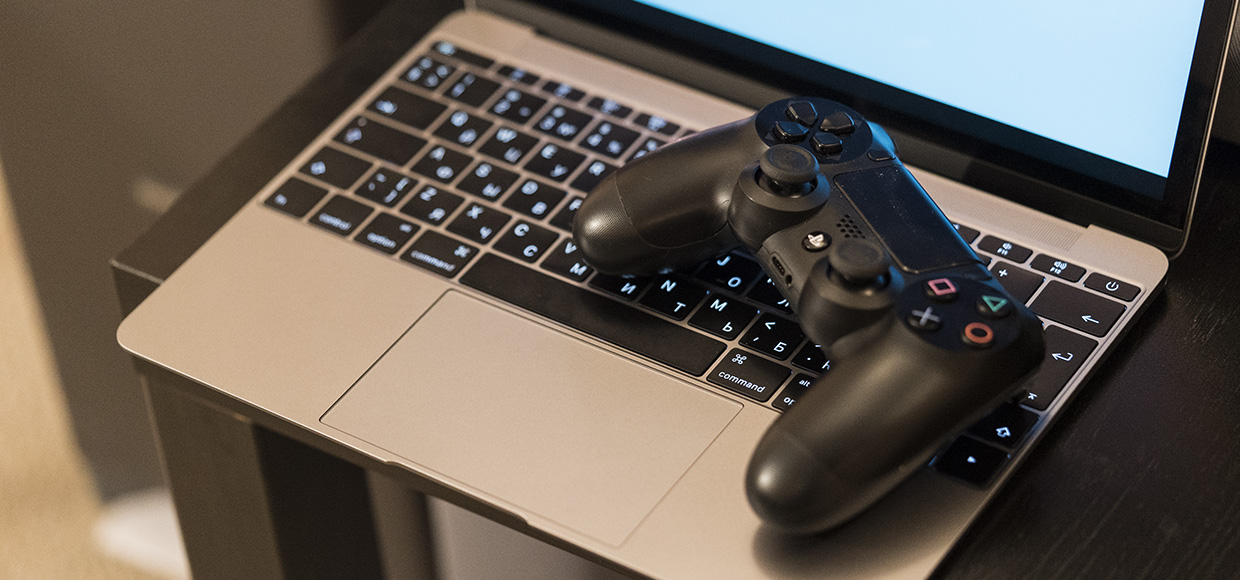
Любимые игры теперь всегда с тобой.
Ну что, дождались! Теперь можно играть на MacBook в Mortal Kombat, Fallout 4 и Ведьмака!
Как это работает

Берем MacBook и играем в любой точке мира, лишь бы скорость интернета не подвела (не менее 12 Мбит/с). При этом всю вычислительную мощь берет на себя приставка, а на мак стримится картинка.
Поддерживается работа со следующими операционными системами:
Как играть
2. Запускаем его
3. Заходим по своей учетке Sony Entertainment Network
4. Подсоединяем Dualshock 4 к маку с помощью кабеля USB
Впечатления
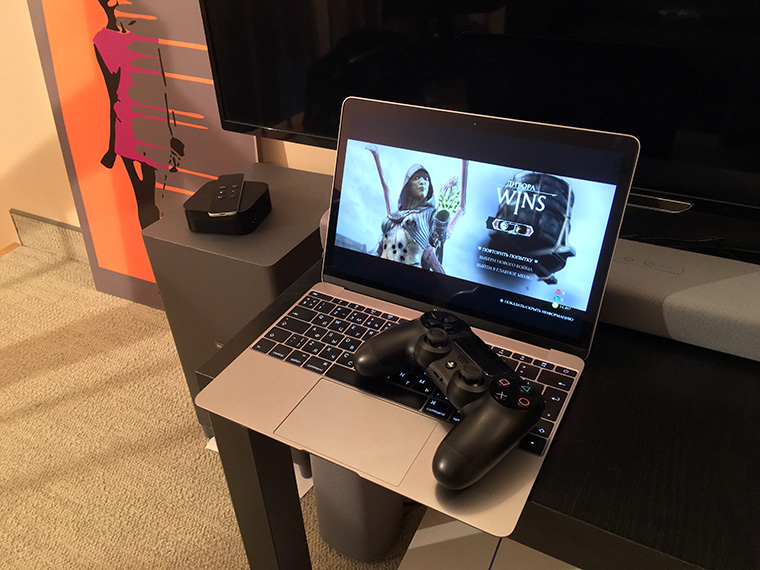
Графика, конечно, так себе, картинка стримится в максимальном разрешении 720p. Зато играть можно спокойно даже на MacBook 12, ни намека на лаги. И самое главное, играть можно абсолютно везде! Кто переживал, что на OS X нет игр – забейте! В общем все, я пошел делать Fatality, а вы срочно гоу качать!
В закладки
Дмитрий Черенков
Пишу об этом. И о том. Яблочник, консольщик, фанат технологий и металла. Генератор коротких новостей, клац-клац и в продакшн.
Can You Connect a PS4 to a MacBook With & Without HDMI?

It’s a lazy Saturday afternoon, perfect for a PS4 game but the little ones are glued to the TV.
Your teenage son does not look like he’s about to give up his weekend gaming session just yet but you are determined to break your longest gaming session record.
The TV upstairs is not an option either because mom is binge-watching the new murder mystery show on Netflix.
You’re only left with your Mac computer to mess around with. That’s when it hits you that you may need to connect your PS4 to the Mac with HDMI.
But you wonder if this is even possible.
Fortunately for you, we’ve solved that mystery. See the steps we followed to connect a PS4 to a Mac, with and without HDMI.
Can You Connect a PS4 to a MacBook with HDMI?
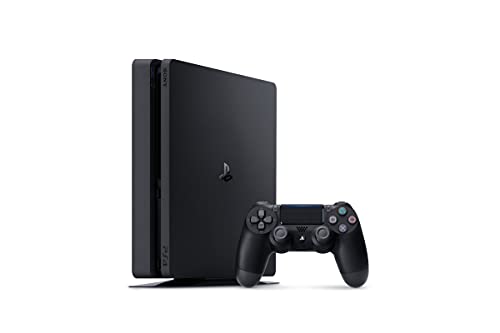
Click this image for more information
No, you cannot use HDMI to connect a PS4 to a MacBook directly.
If it were a monitor, 100% yes, it would. But the Mac isn’t a monitor. It is a much more complex device.
The HDMI port on a monitor is meant to recognize incoming signals and translate them into images, whereas the HDMI port on your Mac does not recognize any incoming signals. It’s a video-out port.
When you connect an HDMI cable, your Mac understands it’s required to send some information out via the cable and stands by to await the commands you will give so it can do just that.
It says for instance:
Want to play music? Great, select whichever playlist you want, and I’ll send it right over to the monitor through the HDMI.
But when you connect the PS4 to the Mac via an HDMI cable, your Mac doesn’t react. It will give you a blank stare in confusion, wondering what to do with this new cable because it doesn’t recognize the connection.
On the other side, the PS4 will be busy sending the video signal down the HDMI cable. But when the signal gets to the HDMI port of your Mac, it hits a dead end. It can’t gain access to the computer. And so, there is simply no communication between the PS4 and the Mac.
To connect a PS4 to a Mac, you need a different setup altogether, not a direct HDMI connection.
How Do I Connect My PS4 to My Mac using HDMI?
The only way to connect a PS4 to a Mac with HDMI is by using a capture card, as demonstrated in this video.
For a hassle-free connection, you need a capture card that is compatible with your MacBook. The Elgato HD 60 S Capture Card has a USB 3.0 interface that connects to the Thunderbolt port and is compatible with Sierra and newer macOS versions.
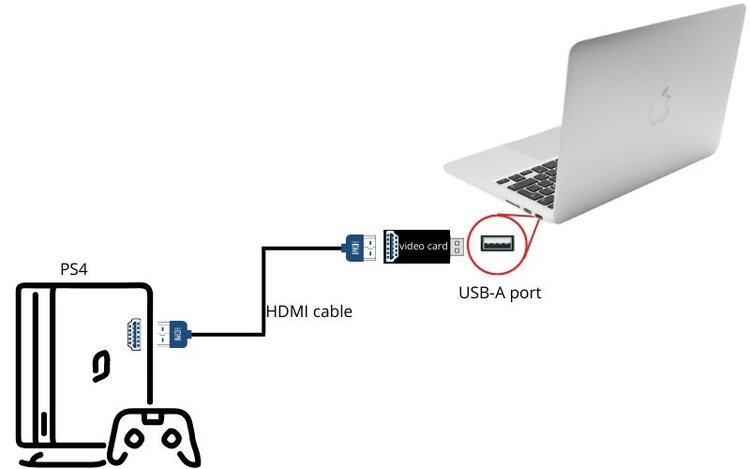
If you use a capture card that is not compatible with the USB specifications of your Mac, you will need an adapter to act as a bridge. The USB-C to USB-A adapter works for type A capture cards.
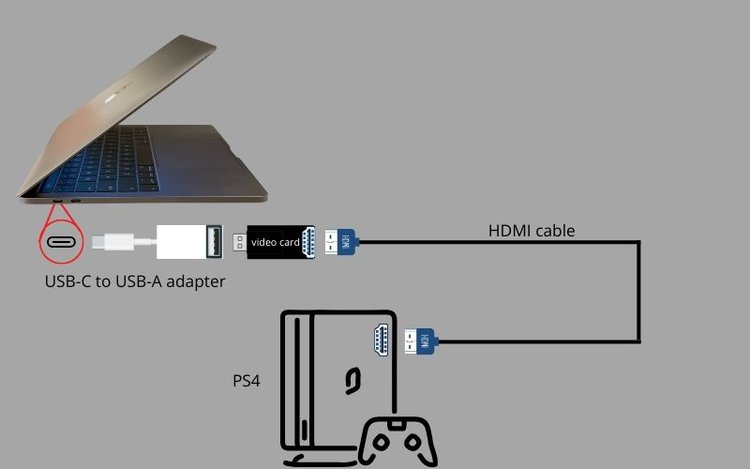
You’ll also need video recording software. Most capture cards come with their own software, but you can use any other video capture software.
- Download the macOS version of your chosen video capture software to your computer.
- Connect the HDMI OUT port of your PS4 console to an HDMI cable.
- Connect the other end of the HDMI cable to the HDMI IN port of the capture card.
- Plug the video capture card into the Thunderbolt port on your Mac.
- If your capture card does not have a USB-A port, use the USB-C to USB-A adapter to connect to the USB-C port on your Mac.
- Launch the video capture software.
- Go to Sources, then click the plus sign to bring up the list of buttons
- Choose Display Capture and click OK. This will open the display capture device menu.
- Select USB Device
Your PS4 home screen will display on the Mac screen. Enter full-screen or adjust the screen size as you like. You can now play PS4 games directly from the computer.
Sound output may be a challenge with this setup. Your PS4 should naturally output audio through the HDMI, but the maze of connections could impact the audio output. You can only hope that your cables are up to the task and will successfully transmit the audio.
Video quality too may be subpar when you use this connection method, with lags being the predominant challenge you may encounter.
How to Connect a PS4 to a Mac Without Using HDMI?
Here is a different way to link your PS4 to your Mac. This second method does not use HDMI and gives far better results.
You will need to use the PlayStation remote playback feature, Remote Play, and a wireless controller to make the connection. Presently, PS Remote Play is the only app that allows you to stream or play PS4 games on a MacBook.
- Download the app from the App Store and follow the installation prompts.
- Go to the Function area on your PS4 home screen. To access the function area or screen, press the up button while on the home screen.
- Go to Settings, then to Remote Play Connection Settings, and Enable Remote Play.
- Go back to the function area and then to Settings again. Go to Account Management, then Activate as your Primary PS4, and select Activate.
- Go to Settings once again, then to Power Save Settings, and then Set Features Available in Rest Mode. Select the Stay Connected to the Internet and Enable Turning On PS4 From Network checkboxes.
This will allow you to start PS Remote Play while the PS4 console is in Rest Mode.
You only go through Steps 1-5 one time when making the initial setup. For subsequent connections, you will follow steps 6-9 each time you want to access your PS4 console from the Mac. - Turn on the PS4 console. You can also set it to rest mode.
Remember you activated feature availability in rest mode in Step 5 above, so your Mac will be able to access the PS4 console even when it’s in rest mode. - Use a USB cable to connect your controller to the Mac. You can also use Bluetooth to pair them.
- Launch PS Remote Play on the Mac and select Sign in to PSN.
Use the sign-in credentials for the account you use for your PS4 console. - Select PS4. PS Remote Play will search for and connect to the PS4 console.
- Your PS4 console screen displays on the Mac. You can now play PS4 games from your Mac.
Use your PS controller to navigate the PS console. This video shows you how to do so without interfering with the remote connection.
How to Connect Your PS4/PS5 to a Laptop or Mac

When you have your PlayStation next to a monitor or TV, it’s convenient to hook up your console to your setup for quick and easy gaming. However, if you own something like a Mac or a laptop, you may need to do a little more legwork to play games on your screen. Let’s take a look at how you can connect PS4 or PS5 to your laptop or Mac.
Content
The Problem With Using a PlayStation’s HDMI Cable on a Laptop or Mac
If you use a traditional computer and monitor setup that uses HDMI connections, plugging in a PS system is easy. If your monitor has two HDMI ports, plug in your PlayStation into the second port and switch between the inputs. On the other hand, if your monitor only has one HDMI port, you can use an HDMI splitter to toggle between your computer and the console.

Your laptop and/or Mac has an HDMI port, so that solves that, right? Unfortunately, the HDMI ports on your computer are different from those on a monitor. Monitor HDMI ports listen for data because a monitor’s primary job is to display information. Your laptop or Mac’s HDMI ports, however, are designed to send data instead.
As a result, if you plugged in your PlayStation’s HDMI cable into the HDMI port, nothing will happen. That’s because your laptop wants to send data down the HDMI port, but your console also wants to send data back down the cable.
How to Play PS4/PS5 Games on a Laptop or Mac
Because a direct HDMI connection is not possible between a PlayStation and your laptop in the majority of cases, you’ll have to resort to taking advantage of your own wireless network to «stream» the content. If you want to play your console’s games on a laptop or Mac, you can use Remote Play.
Remote Play is an app for Windows, macOS, Android, and iOS. It lets you connect to your PS4 or PS5 remotely, as long as you have a fast Internet connection. When you first use it, it’s eerie to see your console turn on «by itself.» However, once it’s running, you can see and interact with its screen from any device.
How to Use Remote Play
To use Remote Play on a laptop or Mac, download it from the website. On Mac, it’s a PKG installer and on Windows it’s an EXE file.
While you wait for the download to finish, hunt around for a USB cable and a PlayStation controller, then plug them into your system. While you can use your keyboard to navigate your console, you’re limited to only the arrow keys to move, Enter to confirm things, and Esc to go back.
Once the app is downloaded, boot it up and log in with your credentials. Then, click Start to search for your device.

If the app finds it, it will turn on your console and show you a feed. If you’re next to your console when this happens, it should beep and boot up «by itself.»

Now you can use your PlayStation controller to play games or use the keyboard to perform basic menu navigation.
How to Turn Off PS4/PS5 Controller
Once you’re done gaming, you may be tempted to hit the cross at the top-right of the window. However, if you do this, all it does is close the remote connection to the console; the console itself will continue to run.
To turn off the PS4/PS5 properly, press the PlayStation button and select the power options from the menu. With a controller, this is easy; it’s the shiny button in the middle with a PlayStation logo on it. Without a controller, you need to wiggle the mouse over the window to get the bottom bar to appear, then click the middle button with the logo.
Frequently Asked Questions
What operating system do I need on my laptop to play PlayStation games?
For Windows, 10 and up works fine. On Mac, you need at least the High Sierra version. This may cut off a significant portion of systems made prior to 2016, but it was necessary to maintain compatibility with certain communications features, which weren’t fleshed out in prior versions of these operating systems. As an alternative, Remote Play also works on mobile devices running Android and iOS.
Do all my games work with Remote Play?
Compatibility with Remote Play is limited only by any extra peripherals like the PlayStation camera or Move Controller, both of which cannot be passed on through Remote Play. If any games use these two peripherals, they will not work properly.
What are the best conditions for a smooth gaming experience?
To make sure you avoid frame skipping, micro-stutters, and other issues related to using Remote Play, you must have at least 15 Mbps bandwidth available to dedicate to gaming on your wireless router.
Nowadays, most routers provide ample room for this within the local wireless network, so make sure your PlayStation and laptop are both on the same local area network (LAN). Some routers will even provide Quality of Service (QoS) features. If you have such a feature, enable it to ensure that streaming services like Remote Play are given top priority.
Also, make sure that the path between your laptop and the console is not interrupted by devices that can cause interference. These include microwave ovens and other wireless devices. If you encounter significant stutters, disconnect all wireless keyboards/mice and other such accessories from the laptop and any other devices in your home and try playing again. If you find this improves your performance, slowly re-connect each device one by one to isolate what exactly may be causing the interference. Remember, Wi-Fi technology relies on radio signals in the 2.4 GHz and sometimes also the 5 GHz band. If anything else is using the narrow band your router allocated for the PlayStation, it will cause issues.
Can I connect PS4/PS5 to a Linux device?
Yes, you can, using a free and open-source Remote Play alternative called Chiaki.
Miguel has been a business growth and technology expert for more than a decade and has written software for even longer. From his little castle in Romania, he presents cold and analytical perspectives to things that affect the tech world.