Installing the Datasmith Plugin for Archicad on Windows
Install the Datasmith Exporter plugin for Archicad on Windows.
This page explains how to install and remove the Datasmith Exporter plugin for Archicad on Windows.
Installing the Plugin
Before installing the plugin, close Archicad and remove any previous version of the Datasmith plugin that is installed.
Graphisoft provides their own Datasmith Exporter plugin for Archicad. It is recommended to remove the Graphisoft plugin before installing the Twinmotion Datasmith Exporter plugin.
Download the Datasmith Exporter plugin for Archicad from the Twinmotion website .
Go to the location on your machine where the file was downloaded and double-click the UnrealDatasmithArchicadExporter_xx.msi file to open the Setup Wizard.
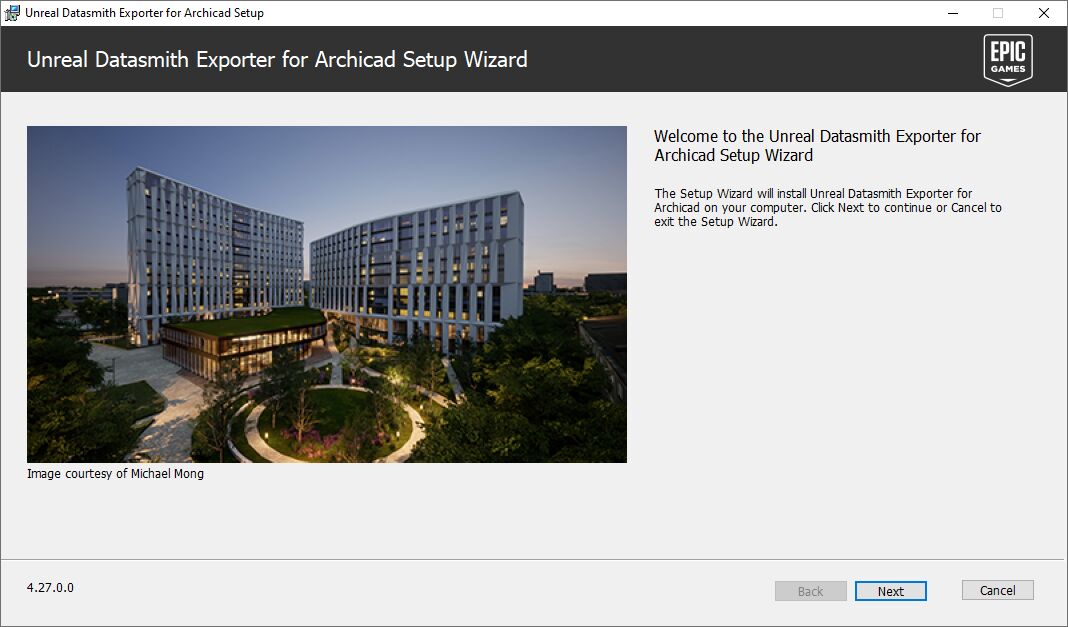
Click Next.
The End User License Agreement appears.
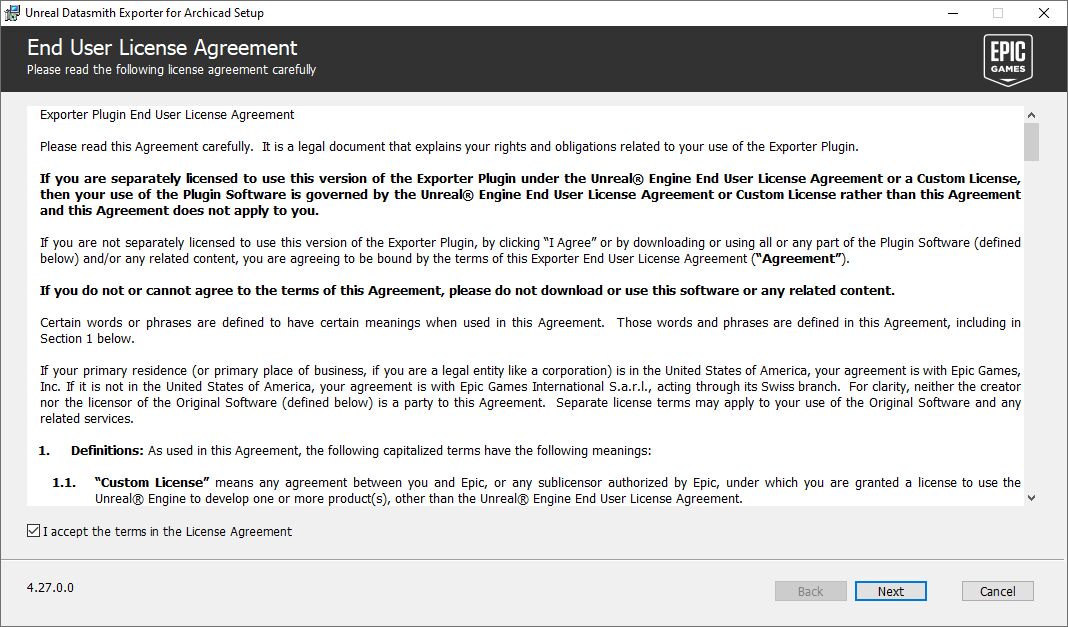
To accept the terms and agreements, check the I accept the terms in the License Agreement checkbox, and click Next.
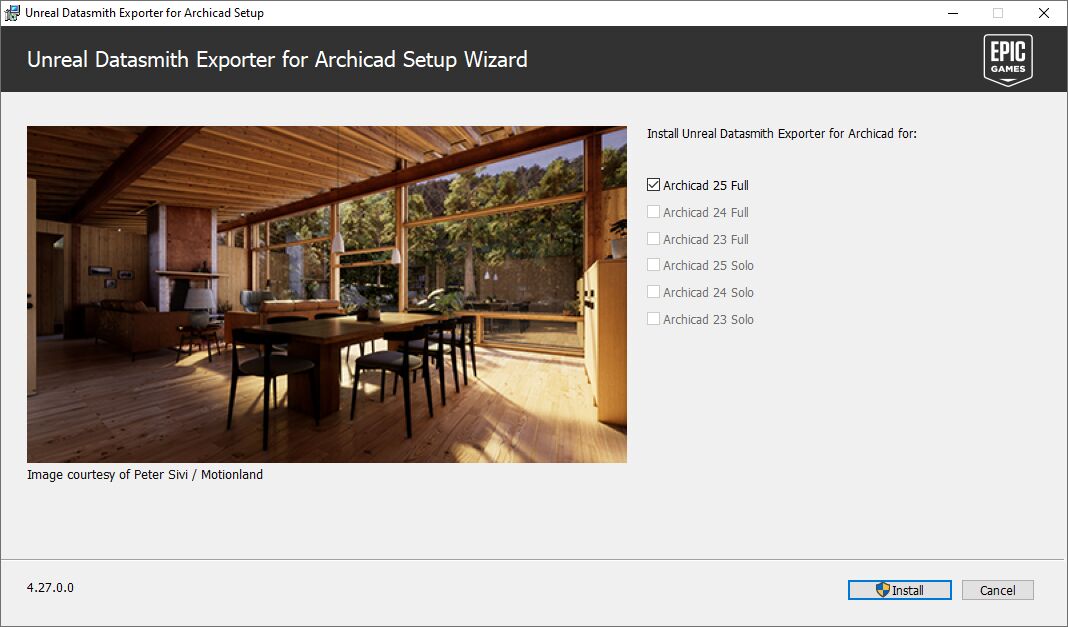
The Setup Wizard detects which version of Archicad is installed on your machine and automatically selects it. You can also select any other version of Archicad that is installed on your machine that you want to use with the Datasmith Exporter Plugin. Click Install to start the installation process.
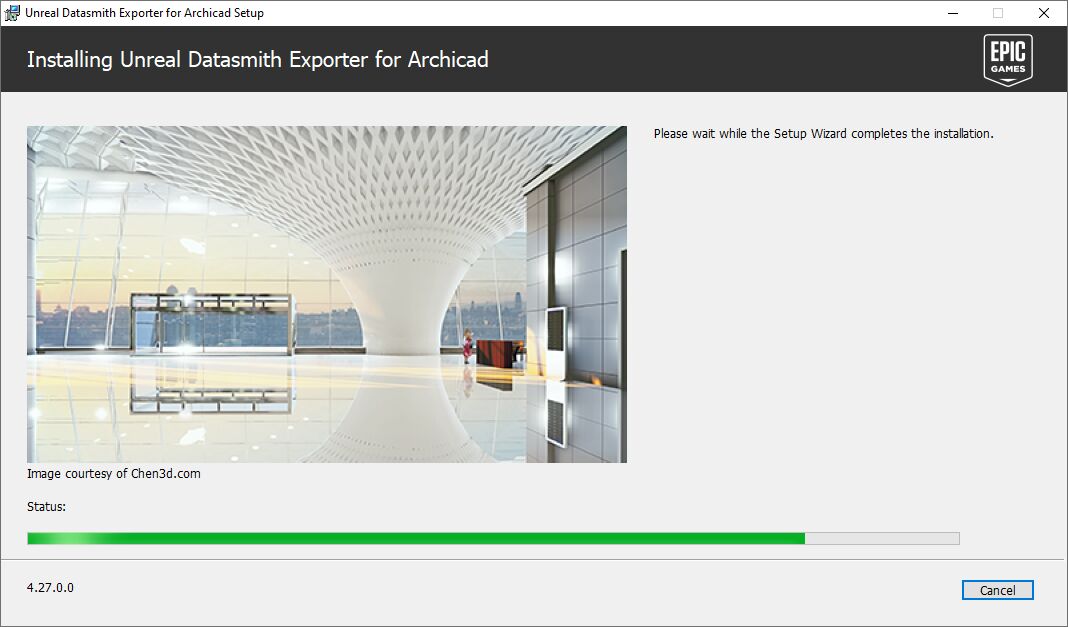
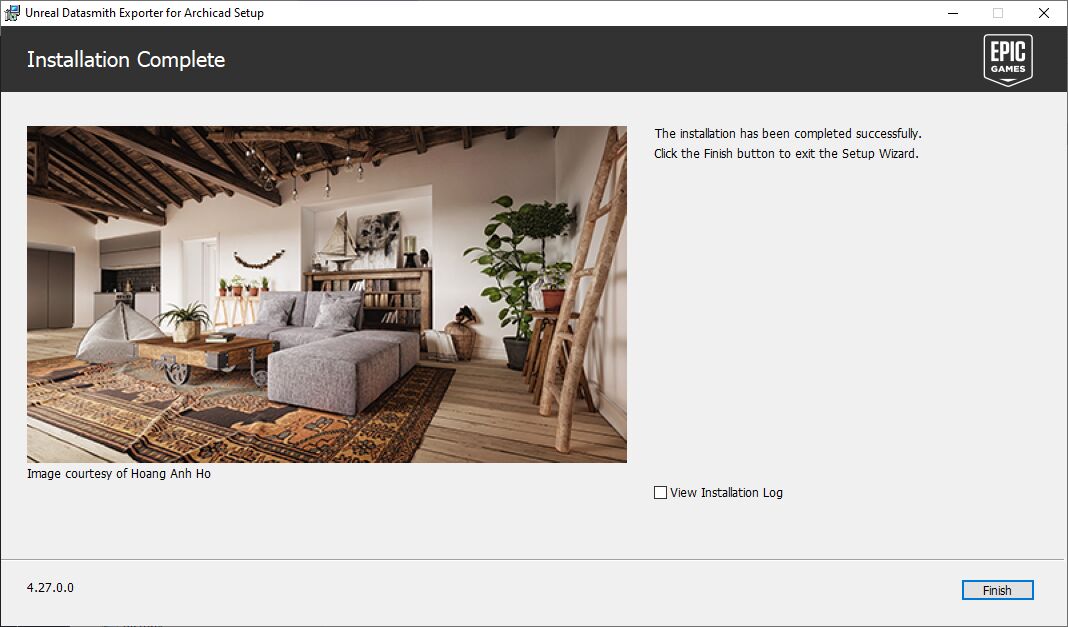
Once the plugin is installed, click Finish to close the Setup Wizard.
To show or hide the Datasmith toolbar (palette) in Archicad, on the menu click Window > Palettes > Datasmith.

Removing the Plugin
On the taskbar, type Add or Remove Programs in the search box and select it from the results.
In the list of programs, locate and select Unreal Datasmith Exporter for Archicad.
Click Uninstall.
On the taskbar, type Control Panel in the search box and select it from the results.
In the Control Panel, select Programs, and then Programs and Features.
In the list of programs, locate and right-click Unreal Datasmith Exporter for Archicad.
How to Set Up ArchiCAD and Twinmotion Direct Link
ArchiCAD is a powerful tool for creating 2D and 3D architecture models, while Twinmotion Direct Link allows users to quickly generate photorealistic renders of their projects. With the combined power of these two programs, architects can have complete control over their design process. Learn how to make the most out of the ArchiCAD-Twinmotion Direct Link collaboration in this guide.
What actually is a "Direct Link" ?
A direct link is a connection from Archicad to Twinmotion via a smart Datasmith Exporter Plugin for Archicad with Direct Link functionality. Once you have installed the plugin return to this article and follow the steps below on how to set up the Direct link.
With this live connection, both the Archicad and Twinmotion model are synchronized in real-time, enabling architects to edit the model and make design decisions on-the-fly, while all changes made in the Archicad model are subject to an automated update process inside Twinmotion.
How to get started with Archicad to Twinmotion direct link.
Watch the video or follow instruction below the video which explains how use Archicad to Twinmoition direct link.
1. After you have installed the datasmith plugin, open both applications — Archicad and Twinmotion. Now open your Archicad project. While in Archicad you need to be in the 3D view window to be able to synchronize your Archicad model to Twinmotion. This is because only 3D information is able to be synched to Twinmotion.
2. Next you go to Twinmotion and create the direct link. To do this make sure you are in the import options. Then click on the plus to import a file or create a direct link. We like to create a direct link hence we choose the option Direct Link next to the Geometry option.
3. Next we check the direct link settings source. You will see that Twinmotion is automatically finds the Archicad project file you have open. If for some reason it is not and it is empty, just click next to the direct link settings source and choose your Archicad file you have currently open, from your file system.
4. Looking at the other settings below I recommend to use the — collapse by material — option. This will combine any Archicad objects you have applied the same material to into 1 object geometry in Twinmotion. This is the most common option/practice to work and best optimizes your Archicad model in Twinmotion.
Как открыть файл архикад в твинмоушен
Чтобы активировать программное обеспечение, выполните следующие действия:
- Перейдите на вкладку Twinmotion в программе запуска Epic Games.
- В левом нижнем углу щелкните левой кнопкой мыши свое имя пользователя и выберите «Активировать код» во всплывающем окне.
- Затем в окне веб-браузера введите код продукта в поле и нажмите кнопку «Активировать».
Привет! Меня зовут Джон. Я инженер и дизайнер. Хочу поделиться своим опытом и важными моментами, которые нужны при начале любого строительства.
ВНИМАНИЕ ПРАВООБЛАДАТЕЛЯМ! Все материалы размещены на сайте строго в ознакомительных и образовательных целях! Если вы считаете, что размещение какого-либо материала нарушает ваши авторские права, обязательно свяжитесь с нами через контактную форму и ваш материал будет удален!
Datasmith Exporter for Archicad
For use with Twinmotion 2021.1 — 2023.1 Preview 1 on Windows and macOS
Compatibility
Compatible with Archicad 23 — 26
Last updated
October 26, 2022
About this plugin
The Datasmith Exporter plugin for Archicad features Direct Link functionality that enables you to synchronize your files into Twinmotion with a single click. You can also synchronize multiple files from Archicad into the same Twinmotion project, or even mix and match them with files from Revit, Rhino, or SketchUp Pro.
- Materials and objects are not automatically substituted for Twinmotion materials and objects.
- Datasmith Exporter plugins are also used for Unreal Engine; if you have already installed the latest plugin from the Unreal Engine page, there’s no need to reinstall for Twinmotion.
How to install

- Make sure you have the latest version of Twinmotion installed; you can check this by opening the Epic Games launcher and going to the Twinmotion tab.
- Close Archicad if it is open.
- Uninstall any previously installed Datasmith Exporter plugin or Twinmotion Direct Link plugin for Archicad.
- Once the download completes, run the installer file and follow the instructions, including reading and agreeing to the end-user license agreement (EULA).
- You can now open Archicad and start using the plugin to bring your project to life with Twinmotion.
- For more information, refer to the Getting started overview guide for the Datasmith Exporter plugin.
Get the latest version for Windows
Get the latest version for macOS
Archived versions
Datasmith Exporter — UE 4.27.2 (Windows)
Compatible with Archicad 23 — 25
Download
Datasmith Exporter — UE 4.27.2 (macOS)
Compatible with Archicad 23 — 25
Download
Twinmotion Direct Link plugin for Twinmotion 2021.1 (Windows)
Compatible with Archicad 19 — 24
Download
Twinmotion Direct Link plugin for Twinmotion 2021.1 (macOS)
Compatible with Archicad 19 — 24
Download
Twinmotion Direct Link plugin for Twinmotion 2020.1 (Windows)
Compatible with Archicad 19 — 23
Download
Twinmotion Direct Link plugin for Twinmotion 2020.1 (macOS)
Compatible with Archicad 19 — 23
Download
Twinmotion Direct Link plugin for Twinmotion 2019 (Windows)
Compatible with Archicad 19 — 23
Download
Twinmotion Direct Link plugin for Twinmotion 2019 (macOS)
Compatible with Archicad 19 — 23
Download
Importing and Working with Archicad Data in Twinmotion: Webinar Replay
We recently hosted the live webinar Importing and Working with Archicad Data in Twinmotion. If you missed it, no problem! The replay is available right here.
In this webinar, Craig Barr, Technical Evangelist at Epic Games, and Belinda Ercan, Product Manager at Graphisoft, demonstrate a simple and straightforward way to work with ARCHICAD data in Twinmotion using the new ARCHICAD Direct Link. Craig also gives a walk-through of how to set up a scene, and Belinda provides news on the latest ARCHICAD release.