Fixed: Dell Alerts Hard Drive Not Found
When you boot Dell computer, you may encounter the ‘Internal hard disk drive not found» issue. Here we will tell why Dell alert hard drive not found, as well as how to fix it.
By Cherry  / Last Updated May 12, 2023
Dell alert hard drive not found
“I have a Dell laptop installed Windows 10. It was working fine this morning. Then, I went out leaving my computer on, and when I came back, I got a Dell alert hard drive not found with a message like the following list:
‘Internal hard disk drive not found
To resolve this issue, try to reseat the drive.
No bootable devices—strike F1 to retry boot, F2 for setup utility
Press F5 to run onboard diagnostics.’
I tried pressing F1 and it gave me:
‘No bootable devices—strike F1 to retry boot, F2 for setup utility
Press F5 to run onboard diagnostics.’

How do I solve this problem?”
Reasons for Hard drive not found in Dell computer
Actually, hard drive not found issue occurs not only in Dell, but HP, Kingston, Samsung, etc. When a computer starts up with a message like hard drive not detected, no boot device found, no boot partition found, missing operating system, hard disk drive failure, etc. It means the computer is unable to find the default hard drive it uses when it loads. There are several reasons why your Dell reports no hard drive detected or missing operating system error on start up:
♦Bad BIOS setting;
♦A loose cable;
♦A corrupted hard drive registry;
♦A bad Windows installation;
♦A boot sector virus;
♦A broken hard drive.
Solutions to Dell alerting hard drive not found
When there is no hard drive detected in Dell, you should work around to resolve the problem. Here are some ways for you to resolve it.
1. Press F1
When the Dell alert you hard drive not found, press F1 to continue, it is a BIOS error message. And you should press F1 to continue. Because pressing F1 is a contingency procedure that can work around an error, and the computer may load into Windows correctly after pressing F1.
2. Correct bad BIOS settings
BIOS handles the basic setup and boot process for the computer and prepares it to load the operating system. Hard drives are usually connected to onboard a SATA or IDE port. If the port that hard drive is connected is disabled, hard drive will not be detected by the computer and you will get a message “hard drive not found”. Thus, when you meet the problem, you need to check BIOS setup.
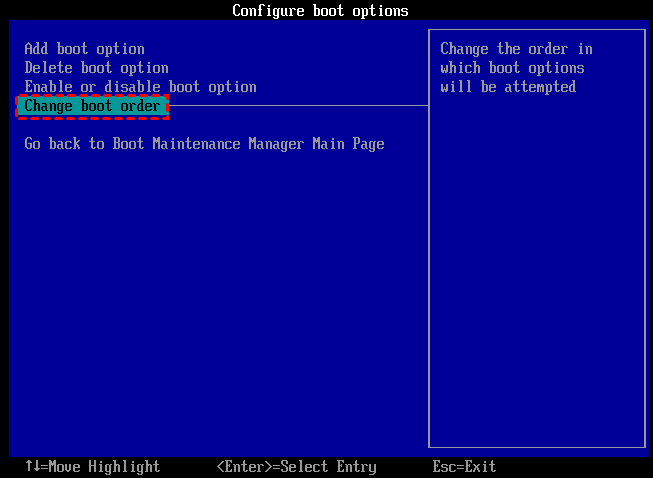
Another question you need pay attention to is the hard drive that contains Windows should appear first on the list. If it didn’t appear first on the list, you can enter the computer’s BIOS setup and change the boot device priority.
3. Check hard drive cable
Dell hard drive not found may also happen if the computer isn’t physically connected to the hard drive. So you can check the hard drive cable to ensure whether it has a loose cable connection or the SATA cable and power cable may have worn out. If it is, you can reconnect the cables from both the hard drive and the motherboard, or replace the cable with a new one.
4. Perform a hard drive reseat
A hard or forced reseat erases all information in the computer memory and might restore functionality. Reseatting your computer forces the system to clear and reestablish the software connections between the BIOS and the hardware. To perform a hard reseat, you should do as following steps:
1. Turn off the computer. Remove the computer from any port replicator or docking station.
2. Disconnect all external devices from your computer, unplug the AC adapter from the computer.
3. Remove the battery from the battery compartment.
4. Press and hold down the Power button for about 15 seconds to drain any residual electrical charge from the capacitors that protect the memory.
5. Insert the battery, and plug the AC adapter back into the computer, but do not connect any of the peripheral devices such as USB storage devices, external displays, printers, etc.
6. Turn on the computer. If a start menu opens, select Start Windows Normally with arrow keys and press Enter.
5. Test Hard Drive
If the ways above cannot settle your problem, then you need to test whether it is a physical damaged hard drive.
Remove the hard drive from the computer and connect it to another computer to see whether it still works. if it doesn’t, you should replace hard drive with a new one. If it does, you can test the hard drive to see if it has bad sectors. For this job, here we highly recommend you to use a third party software AOMEI Partition Assistant Standard, which can help you check your hard drive easily. It can work under Windows 11/10/8.1/8/7/XP/Vista.
Step 1. Connect your hard drive from Dell to a Windows PC.
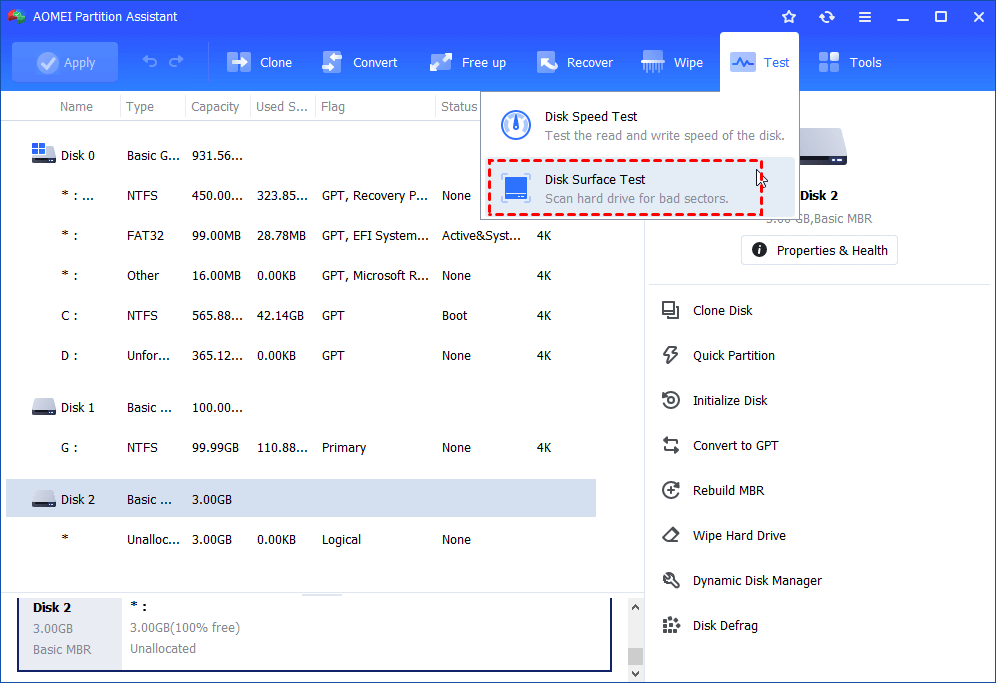
Step 2. Free download AOMEI Partition Assistant, install, and launch it. You can see the hard drives on the main interface. To test hard drive, here you can select the hard drive. Then click the Test button on the top side and select Disk Surface Test.
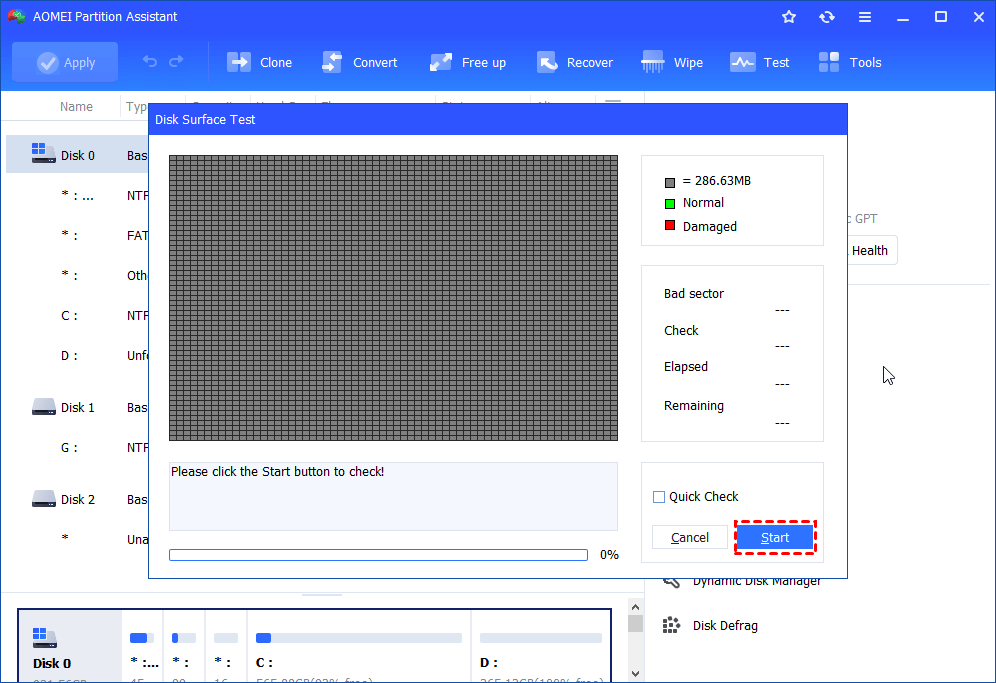
Step 3. Then, tick the option of Quick Check, click Start, and it will test the hard drive immediately.
If there is any error on the hard drive, you can fix errors with AOMEI Partition Assistant in a few simple steps.
6. Windows Repair Install
A bad Windows installation may cause errors and prevent Windows from loading. Thus, the Dell may alert hard drive not found when booting. If Windows sees the hard drive when running a refresh or repair install, the drive is probably not broken. And you can running a repair or refresh installation to fix it. If it doesn’t work, the drive may be infected with a boot sector virus, which you need to fix by hard drive formatting.
That’s all about how to fix «Dell alert hard drive not found» issue. Hope this article can solve your problem.
[2023] How to Fix Dell Hard Drive Not Installed On Windows 11/10
If you see the dell hard drive not installed problem, directly install 4DDiG Windows Boot Genius to address the underlying issue and remember to back up your important files to avoid data loss regularly.
 William Bollson
Updated on 2023-09-04 11:18:16 to Windows Fix
Windows Fix
4DDiG Windows Boot Genius
“How do I fix the dell laptop hard drive not installed error?”
Like many other gadgets, laptops are susceptible to various issues and difficulties. Despite being a well-known brand, Dell occasionally experiences internal problems. The Dell hard drive not installed problem is one of the most frequent complaints made by users. A box with the words «Continue» usually presents this error when it flashes on the screen. The computer system shuts down when users click on it.
As a result, users become frustrated and confused since they are unsure how to start and resume their unfinished tasks. Most people aren’t tech-savvy and come from non-technical backgrounds. Therefore, read this article thoroughly to learn the causes of the hard drive not installed dell laptop. Additionally, it is simple to determine whether the error is critical or minor. The next step is to learn the underlying principles that will enable you to treat the dell supportassist hard drive not installed completely.
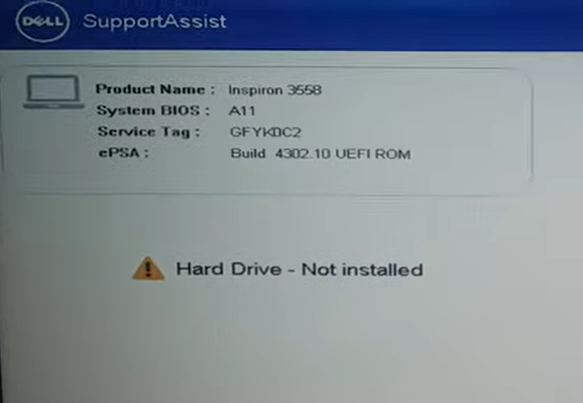
Part 1: First Thing First: about Dell Hard Drive Not Installed
Hard Drive Not Installed is a BIOS error message. The BIOS (basic input/output system) is the inherent software at the core of a computer’s processor, responsible for initiating the system when the PC is powered on. If the BIOS settings are not configured properly, you may encounter the error message stating that the Dell SupportAssist hard drive is not installed. To resolve this problem, it is necessary to know the main causes of dell hard drive not installed.
Moving on to the cause of the problem because it is also essential for consumers to understand the cause of the dell laptop hard drive not installed appearance so that they can tackle it accordingly:
- One of the leading causes of this problem is faulty or loose connections between the computer’s motherboard and hard drive. The cables connecting the hard drive can become loose over time due to vibrations or unintentional impacts, resulting in an error message. The connectors can then be checked and reseated to address this problem.
- Another common cause of issues is an incorrect boot order in the computer’s BIOS settings. If the BIOS is set up to start from a different device—like a USB drive or CD/DVD—before the hard drive, the system won’t recognize its presence, and this problem should be fixed by changing the boot order to give the challenging drive priority.
- The SATA (Serial Advanced Technology Attachment) controller on the motherboard is used to handle communication between the hard drive and the computer. A malfunctioning SATA controller could cause the «Dell Hard Drive Not Installed» issue. The motherboard may then need to be replaced, or the BIOS firmware may need to be updated.
- A failed or defective hard disc could be the source of this error message. Physical harm, design defects, or significant wear and tear over time can all result in a broken hard disc. Data recovery services or hard disc replacement may be required in these circumstances.
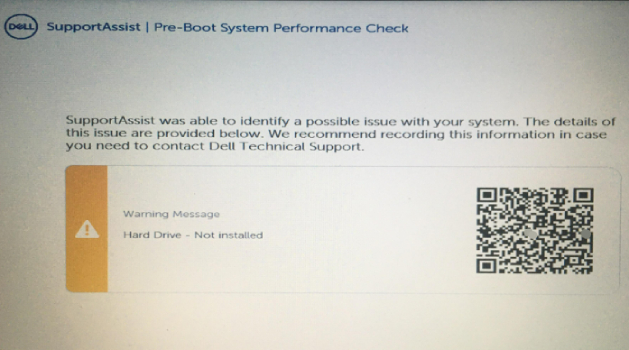
Part 2: How to Solve Dell Hard Drive Not Installed via 4DDiG Windows Boot Genius
When starting your computer, the computer says hard drive not installed. Consider employing 4DDiG Windows Boot Genius if you need a dependable solution to the annoying «Dell Hard Drive Not Installed» problem. This robust program can assist in effectively solving the issue. You can access sophisticated troubleshooting tools with 4DDiG Boot Genius to identify and resolve problems with your Dell hard drive. Your computer will run smoothly using 4DDiG Windows Boot Genius to troubleshoot and fix the Computer issues
Windows Rescue of 4DDiG Windows Boot Genius provides a wide range of comprehensive and efficient solutions that assist you in resolving various booting problems. These issues include blue screen of death, black screen of death, freezing, crashes, recovering missing boot, restoring crashed MBR, fixing corrupt registry, repairing virus-infected registry key values, and mending the partition table.
When your dead computer is booted successfully, 4DDiG Windows Boot Genius will be launched automatically. Now click «Automated repair» to proceed
What to Do if Computer Says Hard Drive Not Installed? (7 Ways)
If you encounter the error “hard drive – not installed” when booting your Windows 10 Dell computer, this post can help you. MiniTool Solution lists the possible reasons for the issue as well as some useful solutions. Just try them and you can easily get rid of the situation.
Dell SupportAssist Hard Drive Not Installed
Computer issues always happen unexpectedly, for example, blue screen, black screen, random restarting, freezing, etc. Besides, you may run into another common problem. When starting your computer, the computer says hard drive not installed.
Usually, this can happen on a Dell computer. Windows shows an error in the BIOS setting like “Hard Drive – Not installed”, as shown below.
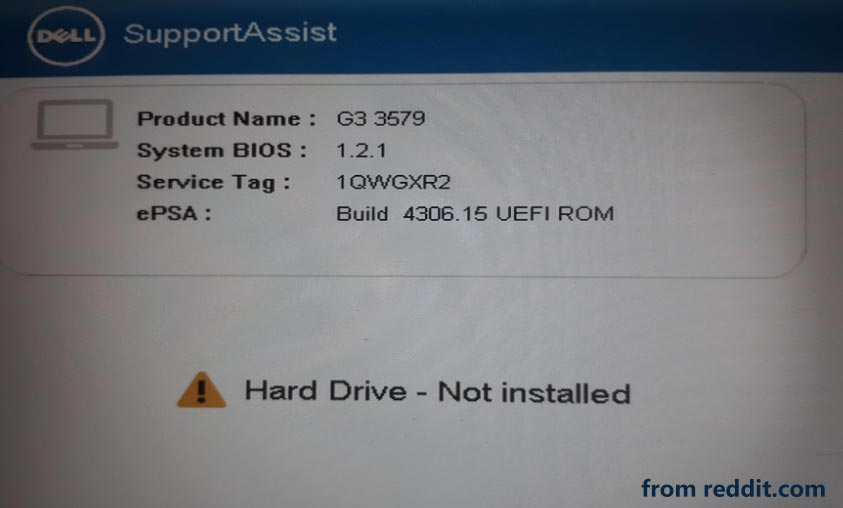
Why do you encounter the issue? It may result from a loose cable, incorrect BIOS setting, bad Windows installation, broken hard drive, corrupt hard drive registry, and more. Well then, how can you fix Dell SupportAssist hard drive not installed in Windows 10?
Go to the next part and some helpful methods are listed. Try them and you can easily fix the error.

What does Dell error code 2000-0141 mean? How to fix code 0141? In this post, you can find much information about this issue and multiple fixes.
How to Fix Hard Drive Not Installed Dell
- Press F1 to boot to Windows desktop
- Check BIOS settings
- Run hardware diagnostics
- Check hard drive cable
- Perform PC hard reset
- Run Startup Repair
- Test your hard drive
Troubleshooting Tips for Hard Drive Not Installed
Continuously Press the F1 Key
On a Dell computer, “Hard Drive – Not installed” is a BIOS error message and you can press the F1 key to continue. It is a contingency strategy and the machine may boot to Windows after pressing F1.
Check BIOS Settings
BIOS (basic input/output system) is the built-in core processor software that is responsible for starting the PC system after it is turned on. If BIOS is not set correctly, you may get the error of Dell SupportAssist hard drive not installed. To fix this issue, you need to check BIOS settings.
#1. Check Date and Time
1. Power off your Dell computer and continuously press the F2 key to enter the BIOS settings interface.
![[5 Ways] How to Get Into BIOS on Windows 11 on Restart?](https://www.minitool.com/images/uploads/2021/11/windows-11-bios-settings-thumbnail.png)
How to make your Windows 11 computer boot into BIOS settings? This post offers some easy and quick methods.
2. Under the General tab, click Date/Time.
3. Check if the date and time are correct. If not, click each one to change.
#2. Check the Boot Mode
After that, the second thing you should do is to check the boot mode. This is very important.
The Dell manufacturer offers two types of boot modes in the Windows operating system including UEFI and Legacy. On recent Dell laptops, UEFI boot mode is enabled by default. If you install the OS in UEFI, but the boot mode is set to Legacy, you will encounter the error of hard drive not installed. In this case, check the boot mode and change it to the correct one.
After pressing F2 to enter the BIOS settings interface, go to General > Boot Sequence. Then, you can see the boot mode that your computer uses. If it is set to Legacy, then change it to UEFI. Also, make sure Secure Boot is enabled and Legacy ROM is disabled. Restart the computer and see if the error is removed.
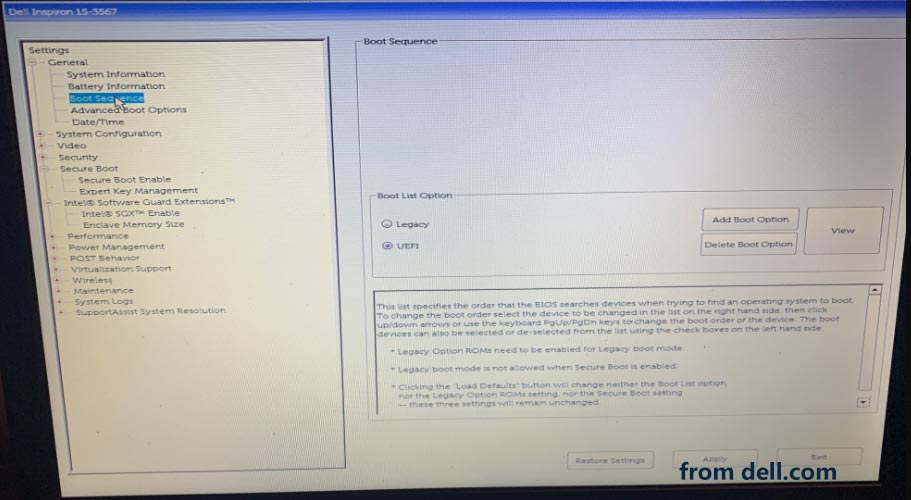
If the operating system is installed on Legacy mode, change the boot mode to Legacy. Make sure Secure Boot is disabled. This is because Legacy boot mode is not allowed when Secure Boot is enabled. Besides, Legacy Option ROMs need to be enabled for Legacy boot mode.
Run Hardware Diagnostics
Another important method is performing hardware diagnostics to confirm the problem. You should know, Dell computers come with a built-in tool for hardware diagnostic. This utility can be used to check if the PC hardware can function properly.
Restart your Dell computer and then continuously press the F12 key. Then, choose Diagnostic in the BIOS menu and press Enter. Follow the prompts on the screen and then respond appropriately to finish the diagnostics. The process will take some time.
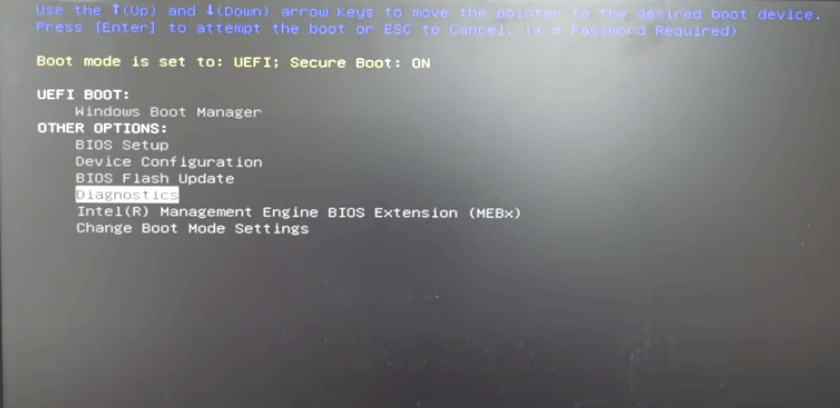
If you run into any errors during tests, write down the error code and go to check the error on the Dell website.
Lenovo diagnostics is a practical tool that is mainly used to test various devices in your Lenovo computer. Read this post to know more detailed information.
Check Hard Drive Cable
Sometimes the issue of Dell hard drive not installed/no hard drive detected/hard drive not found/no hard drive is caused by loose or damaged hard drive cable. You need to check the hard disk connectivity physically.
For a Dell laptop, open the back case. Then, remove the hard drive and reconnect it. If you are using a Dell desktop, you should also check the SATA cable connection. Also, check if it is worn out. If so, replace the cable with a new one.
Perform PC Hard Reset
A hard reset is helpful to erase all the information in the memory of your computer and clear & rebuild the software connections between the hardware and BIOS. Perhaps it can restore functionality and fix Dell laptop hard drive not installed.
Here is what you should do:
- Power off your computer.
- Disconnect all external devices and disconnect the AC adapter.
- Remove the battery from the battery compartment and press & hold the power button for 15 seconds in order to drain any residual electrical charge.
- Put the battery back in and plug the AC adapter into your laptop. Don’t connect any peripheral device.
- Turn on your Dell laptop. If you see the start menu, choose Start Windows Normally and press Enter.
Run Windows Repair
If there is a bad Windows installation, some errors may appear and stop Windows from loading properly. Dell SupportAssist hard drive not installed is not an exception. To get rid of the trouble, running a repair is necessary.
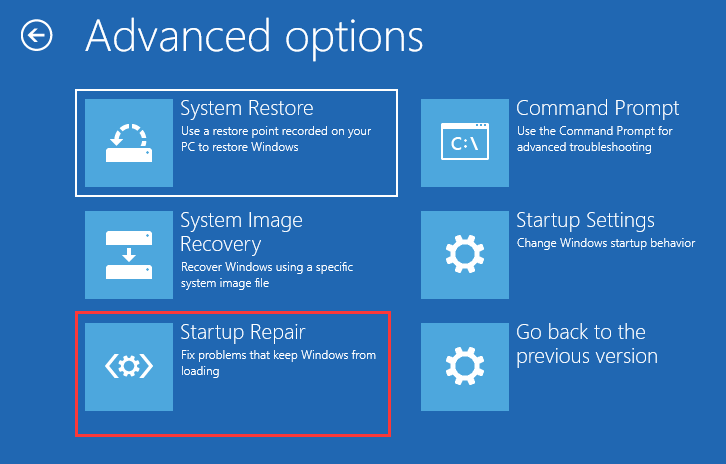
In Windows 10, you can download an ISO file, create a bootable USB flash drive (Related article: How to Create Bootable USB from ISO Windows 10 for Clean Install), boot the Dell computer from that drive, and then click Repair your computer to enter Windows Recovery Environment (WinRE).
Then, under the Troubleshoot interface, click Advanced options. Then, choose Startup Repair to fix problems that prevent Windows from loading. Next, follow the on-screen prompts and Windows starts diagnosing your PC.
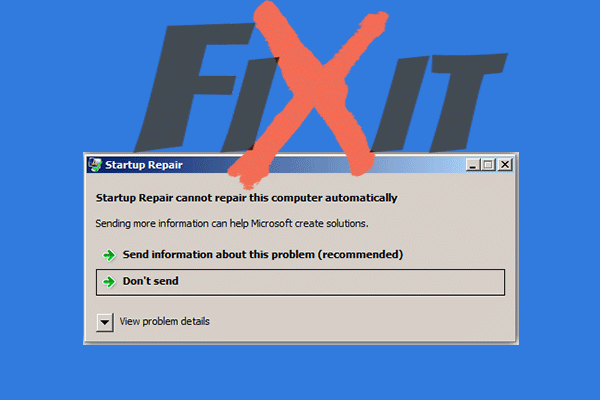
If the error "Startup Repair cannot repair this computer automatically" occurs while you are using Startup Repair, get some methods from this post to fix it.
If this cannot work, try another way. Continue reading.
Test the Hard Drive
If all of these methods cannot work for you, perhaps your hard drive is faulty or damaged. You should make a disk check to see if there are some bad sectors.
To perform the disk test task, you can use a professional partition manager. MiniTool Partition Wizard is worth recommending. It allows you to partition your disk, check the hard drive, migrate OS, clone disk, perform disk benchmark, and so on. Download this software by clicking the following button for the surface test.
Step 1: Launch MiniTool Partition Wizard to its main interface.
Step 2: Right-click your disk and choose Surface Test.
Step 3: Click Start Now to begin the disk check. If there are bad sectors, this program can mark the blocks red.
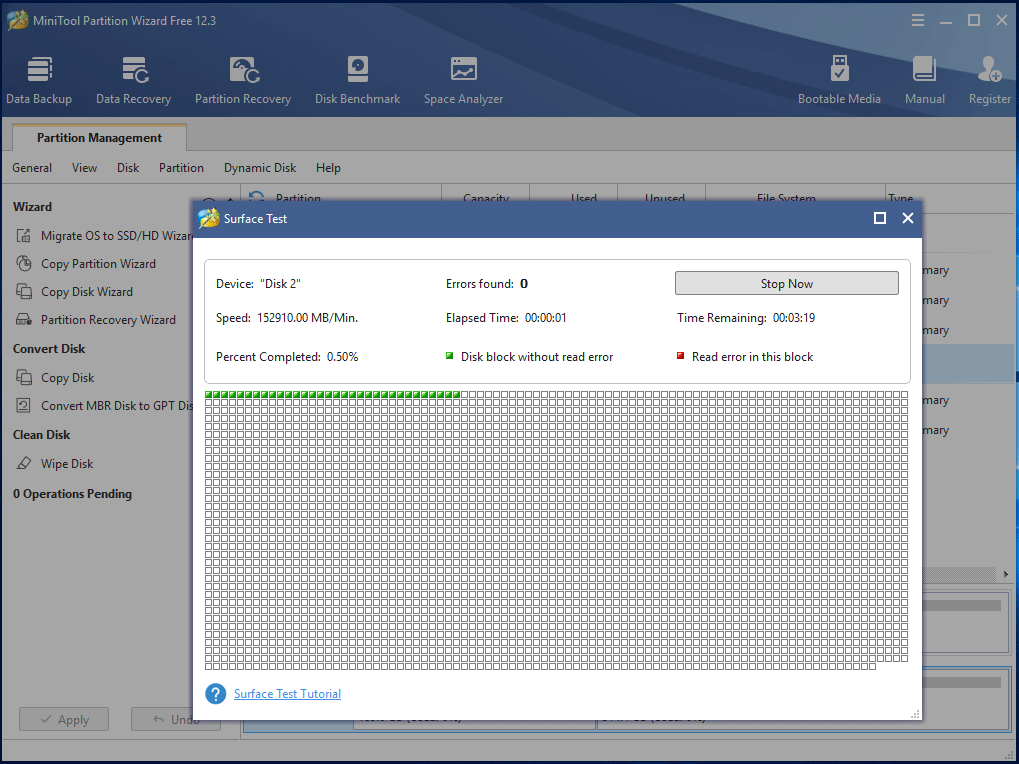
When bad sectors are found, you need to take action at once – shield bad sectors or replace the faulty hard drive.
# 1. Shield Bad Sectors
If MiniTool Partition Wizard finds few bad blocks, the hard drive can still be used. Firstly you should mark the bad sectors as unusable so that Windows skips the blocks next time it meets them. To do this work, run Command Prompt as administrator and use the command: chkdsk /r.
If too many bad sectors are found on your hard drive, things become worse. The hard drive may completely get failing sooner or later. Thus, what you should do is to replace the bad hard drive.
Related article: This post may be helpful to you if there are some bad sectors – What to Do If I Find Bad Sectors on Hard Drive in Windows 10/8/7?
#2. Clone Hard Drive and Replace It
You can choose to clone the hard drive to a new one to save all your important files and then replace the bad disk to solve the issue of Dell hard drive not installed.
Disk cloning is not an easy way but if you use a professional PC cloning software, things become simple. Here, MiniTool ShadowMaker can be your good assistant. It offers you a dedicated feature called Clone Disk. With it, you are allowed to transfer all the data including Windows settings, registries, system files, apps, personal files, and more to another hard drive.
After cloning, the target disk can be used to boot your Dell computer and won’t need to reinstall the operating system. Now, get MiniTool ShadowMaker for a free disk cloning task.
Step 1: Connect another hard drive to a working PC and then run MiniTool ShadowMaker.
Step 2: Under the Tools interface, click Clone Disk.
Step 3: In the pop-up window, choose the bad hard drive as the source disk and the new disk as the target disk. Then, click OK to continue.
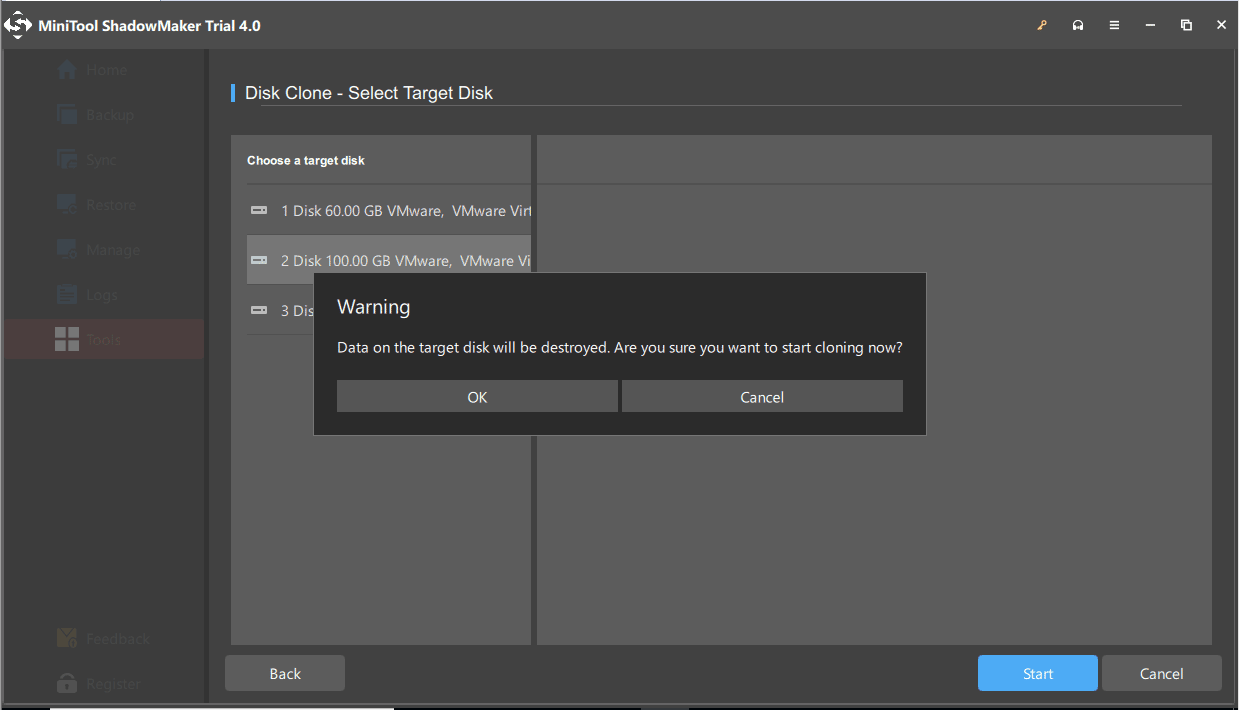
Step 4: Then, the cloning process begins. The process will take some time. After it finishes, disconnect the target disk from the computer and then put it to your Dell computer. Then, boot Windows from it and you won’t encounter the error of Dell SupportAssist hard drive not installed.
Bottom Line
Here comes the end of this post. Hard drive not installed is a common issue for Dell computers including laptops and desktops. Fortunately, you can try many simple ways to easily get rid of it if you also meet that error when starting the computer.
If you run into any problems when using our software or have any suggestions, tell us in the following comment section or send an email to [email protected] . We will reply to you as soon as possible. Thanks.
About The Author
Vera is an editor of the MiniTool Team since 2016 who has more than 7 years’ writing experiences in the field of technical articles. Her articles mainly focus on disk & partition management, PC data recovery, video conversion, as well as PC backup & restore, helping users to solve some errors and issues when using their computers. In her spare times, she likes shopping, playing games and reading some articles.
How To Fix Hard Drive Not Installed Problem On Windows 11/10

Blog Summary – If your computer is showing an error message – Hard Drive Not Installed, you might not be able to operate the system normally. Use MiniTool Partition Wizard to fix the problem quickly.
When you boot up your system and get an error message – Hard Drive Not Installed, it can be alarming. It was reported that HP, Lenovo, and Dell users have been the most affected by this system error. Let’s study the issue and probable causes to find the solutions in this blog post.
The most possible reasons for this are bad BIOS settings, corrupted hard drive registry, bad Windows installation, boot sector virus, or physical damage to the system.
Methods to fix hard drive not installed on Windows 10
If you are getting an issue such as a hard drive not installed on boot up, follow these steps as the preliminary action.
- Rebooting PC – As sometimes a temporary glitch can occur due to system errors and it can be resolved by rebooting the PC. If you are not able to see the error message, then you can move on with your work. If you are not able to see the Restart option, try Hard Reset by pressing the Power button. This will turn off your computer and now turn it on again.
- Check Physical connections – This is one of the most common problems when getting the hard drive not installed error message. You might want to check all the cable connections and ports for damage. You can also check the hard drive for any such physical damage.
Once you are sure, these are not causing you the hard drive not installed error on your Windows PC, it’s time to find a solution.
1. Press F1 to boot Windows –
If it is a hard drive not installed on Dell computer issues, then obviously you will need a specific command. For Dell users, the F1 command will help you enter setup. This will need you to verify the BIOS configuration on your computer. Here you can change your hardware settings and then boot.
2. Check BIOS settings –
When the hard drive is not installed on your computer, it is possible that it got disconnected. By entering the BIOS settings, you will be able to check the setup and check for the hard drive in the list. Restart your computer and press F2 to enter the BIOS settings interface. Here check for the correct date and time and then enter the Boot mode. Ensure that the boot mode is set to Legacy.
3. Hardware diagnostics –
Dell Hard drive not installed error can be solved with this method. As all Dell computers have a built-in tool for hardware diagnostics, we use it to check the functionality of your computer. Restart your computer and then press F12 continuously and then select Diagnostic from the BIOS menu. Follow the on-screen instructions and then you will be able to diagnose the error code.
4. Windows Startup Repair –
It is also possible to have a Windows installation error on your computer which ends up showing you a Hard drive not installed error message. To fix it, we can run the Startup Repair . It is advisable to create a bootable USB from ISO Windows before a clean install.
Now to repair your computer, go to the Troubleshoot and open Advanced Options. In this interface, choose Startup Repair to fix Windows startup-related problems.
5. Test hard drive –
When none of the above work, it might be possible to have issues with your hard drive. To check if your hard drive has some bad sectors, we run a Partition Manager to check it. Here, we recommend using MiniTool Partition Wizard as it will let you partition the hard drive and check it.
MiniTool Partition Wizard is one of the most efficient partition managers for Windows PC. It is capable of creating, cloning partitions along with running a disk benchmark and migrating OS for your computer. Follow the steps below to test the hard drive using it –
Step 1: Download MiniTool Partition Wizard from the download button below-
Step 2: Complete the installation and then launch the application.
Step 3: Select the disk and right-click on it. Now choose Surface Test and click on Start Now. The tool will diagnose the hard drive and show the bad sectors marked in red.

Step 4: Now, if bad sectors are found you can take two actions – Shield Bad sector or replace the hard drive.
When it is possible to skip on the bad parts of the hard drive, you can mark these blocks as unusable. This step will help you skip and fix the hard drive not installed error. To fix this, you need to run the following commands on the Command Prompt CHKDSK /R to scan the hard drive-
Step 1: Type Command Prompt on the search bar in the Start Menu and Run as administrator.
Step 2: Type the following command and press enter.
Chkdsk D: /f /r /x

Now, wait for it to yield results, and then you can check if it fixes your hard drive not installed issues. If not, it means you will require to replace this faulty hard drive.
To clone the hard drive, you will need to download cloning software for your computer. Here we use MiniTool ShadowMaker which will help you Clone disk easily. This will quickly transfer all the data on your hard drive, including the Windows Settings, system files, registries, applications, and more to another hard drive. Connect another hard drive to your computer and then perform the following steps –
Step 1: Download MiniTool ShadowMaker from the download button given below –
Step 2: Launch the application after completing the installation.
Step 3: Go to Tools and click on Clone Disk and then select the hard drive as the source and new hard drive as Target. Click on Ok.

Step 4: This process will take some time and then you will need to disconnect the target disk. Once you are done cloning the disk, you can use it to boot your computer and reinstall the operating system using the new hard drive.
Frequently Asked Questions –
Q1. How to fix the hard drive not installed error on the laptop?
To fix the problem, you will need to try out the hard drive diagnosis using a dedicated tool such as MiniTool Partition Wizard. Other methods include Startup Repair and changing the BIOS settings.
Q2. Why is my Dell hard drive not installed?
Dell hard drives not installed is an error that can occur due to many reasons like corrupted registry, BIOS settings, physically damaged hardware.
Q3. Why does my computer say the hard drive is not found?
It is possible to get the hard drive not installed error on your computer for multiple reasons. Windows installation problem, system errors, physical damage, bad cable connection.
Q4. What to do if your hard drive is not recognized by Dell?
Use DellSupportAssist to fix the issue and if it does not work, you can try out the aforementioned ways to resolve the problem.
Wrapping Up-
If you are having trouble with your computer with the error message – hard drive not installed, it can be frustrating. This can be resolved using multiple methods as mentioned above. The best way to fix it is to try out the troubleshooting on your computer. If it does not work and the hard drive is faulty, you must use MiniTool Partition Wizard to fix the problem.
We hope this article will help you learn how to fix a hard drive not installed on your computer. We would like to know your views on this post to make it more useful. Your suggestions and comments are welcome in the comment section below. Share the information with your friends and others by sharing the article on social media.
We love to hear from you!
We are on Facebook , Twitter , and YouTube . For any queries or suggestions, please let us know in the comments section below. We love to get back to you with a solution. We regularly post tips and tricks along with solutions to common issues related to technology.
Related Topics-
People Who Read This Post Also Like
How to Remove a Rapid Security Response Update from Your iPhone and Mac
How To Fix The “Requested Operation Requires Elevation” Error 740 On Windows 11?
How to Fix iPhone Contacts Disappeared or Deleted
Leave a Reply Cancel reply
Recent Posts
How Can A PDF Editor Tool Help You Go Paperless
5 Best Rotoscoping Software for Windows PC
How to Remove a Rapid Security Response Update from Your iPhone and Mac
How To Fix The “Requested Operation Requires Elevation” Error 740 On Windows 11?
8 Best VPNs for Online Chat Rooms
Subscribe & be the first to know!
Signup for your newsletter and never miss out on any tech update.
All product names, trademarks and registered trademarks are property of their respective owners. All company, product and service names used in this website are for identification purposes only. Use of these names, trademarks and brands does not imply endorsement. WeTheGeek does not imply any relationship with any of the companies, products and service names in any form.
WeTheGeek is an independent website and has not been authorized, sponsored, or otherwise approved by Apple Inc.
WeTheGeek is not affiliated with Microsoft Corporation, nor claim any such implied or direct affiliation.
Disclaimer Last updated: January 01,2023 The information contained on wethegeek.com website (the “Service”) is for general information purposes only. Wethegeek.com assumes no responsibility for errors or omissions in the contents on the Service. In no event shall wethegeek.com be liable for any special, direct, indirect, consequential, or incidental damages or any damages whatsoever, whether in an action of contract, negligence or other tort, arising out of or in connection with the use of the Service or the contents of the Service. Wethegeek.com reserves the right to make additions, deletions, or modification to the contents on the Service at any time without prior notice. Wethegeek.com does not warrant that the website is free of viruses or other harmful components.External links disclaimer Wethegeek.com website may contain links to external websites that are not provided or maintained by or may not be in any way affiliated with wethegeek.com. Please note that the wethegeek.com does not guarantee the accuracy, relevance, timeliness, or completeness of any information on these external websites.
Please note that wethegeek.com may receive commissions when you click our links and make purchases. However, this does not impact our reviews and comparisons. We try our best to keep things fair, objective and balanced, in order to help you make the best choice for you.
Copyright © Wethegeek.com , 2023 All rights reserved.
 Subscribe Now & Never Miss The Latest Tech Updates!
Enter your e-mail address and click the Subscribe button to receive great content and coupon codes for amazing discounts.